


The log shows you, in chronological order, who did what and when in your ChurchTools. This allows you, for example, to track who made a change and when, and to identify errors if you notice any unusual behavior.
Overview of the Logs #
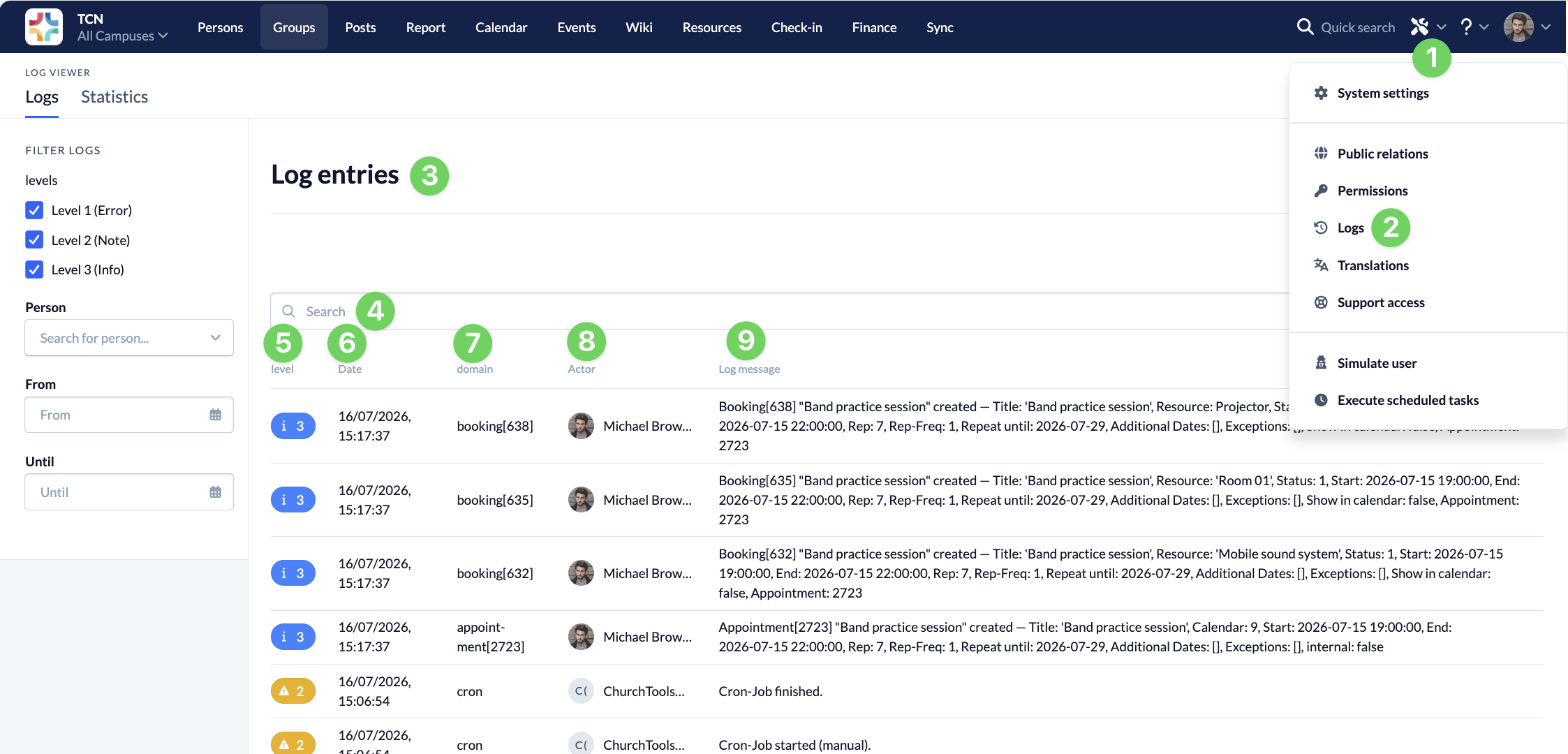
You can call up the log (2) via the Manage menu(1).
In the main area of the window, all log entries (3) are listed chronologically from new to old. You can use the search function (4) to quickly find specific entries that you would like to take a closer look at.
For all entries, you will be shown which level (5) they correspond to, when (6) and in which area(domain) (7) of your ChurchTool they were logged. Under Actor (8) you will find the actor’s account and under Log message (9) you will find what exactly was done.
Filter logs #
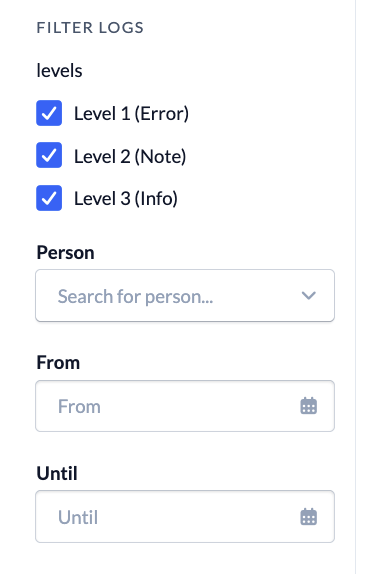
On the left-hand side, you will find various filter options to narrow down the entries in addition to searching by level, user and time period. Entries with level 1 record actual errors that occurred during processes. If you have any questions about one of these entries, please contact our support team. Level 2 and 3 entries record notes and information that are recorded, for example, when changes are made or data is called up.
View Login Statistics #
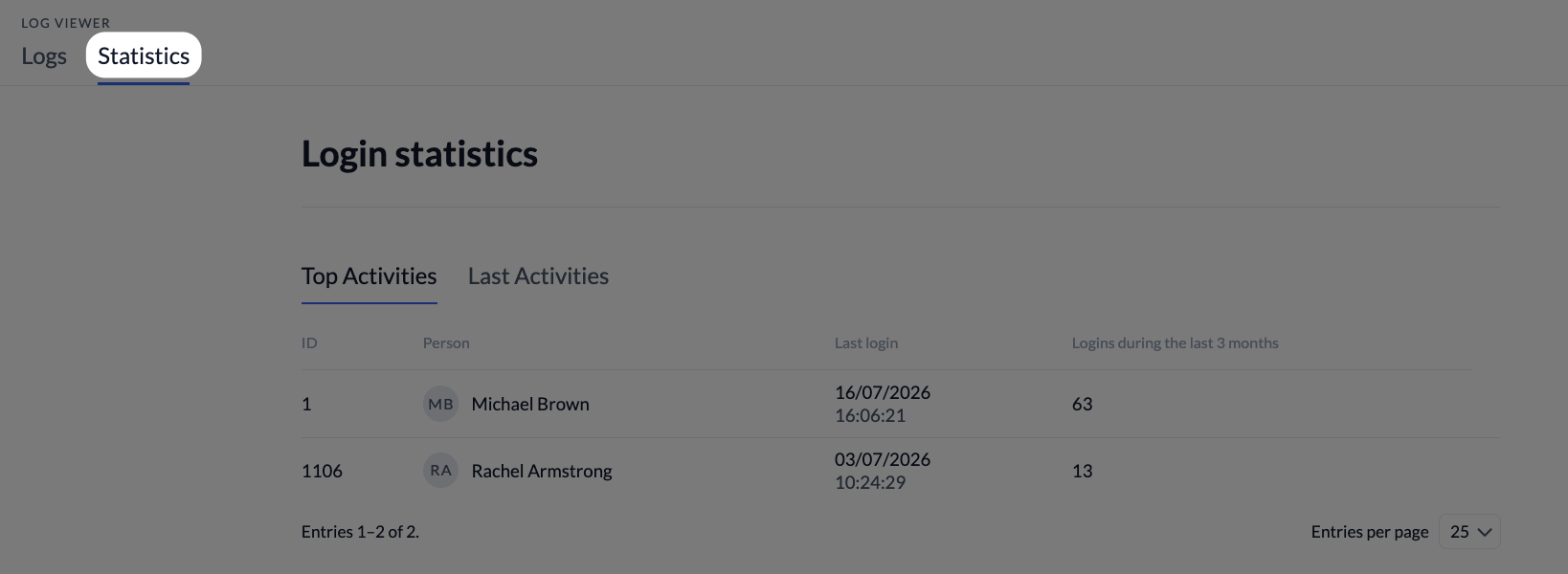
In addition to the logs, you can also access the Statistics tab. Here, you’ll see the most frequent and most recent accesses to your ChurchTools.
Deleting Log Entries #
Here, we distinguish between system logs that should be deleted quickly and all other log entries.
System logs that can be deleted quickly are deleted after 3 months:
- Login Logs
- Cron Logs
- Email Logs
- Rate Limit Messages
- Consolidation Logs
- JS error
- Certain calendar entries that start with “Anonymous added to the calendar…”
All other log entries in the normal log table are deleted as soon as they are more than 3 years old. The following protected entries are not affected by the standard automatic cleanup:
- Person
- Transaction
- Account
- Cost Center
- Tax Rate
There are two special cases: archiving a person and job logs.
- If the corresponding admin option is enabled, a user’s log entries are deleted when that user is archived.
- Job log entries are removed from another log table after just 1 hour.