Your church’s ChurchTools is a secure environment for your data and that of your congregation. There are several ways to use it. You can either register yourself, or an admin at your church can set up an account for you using your e-mail address and then invite you to use the platform.
If your church has set up ChurchTools so that you can register yourself, open the ChurchTools Login screen in the app, select “Register,” and you’ll be redirected to the registration form. Follow the instructions on the form to create an account for your ChurchTools. We explain the detailed steps in the article “Registering and Logging In on the Web.”
If you have an account, there are three ways to sign up for the ChurchTools app.
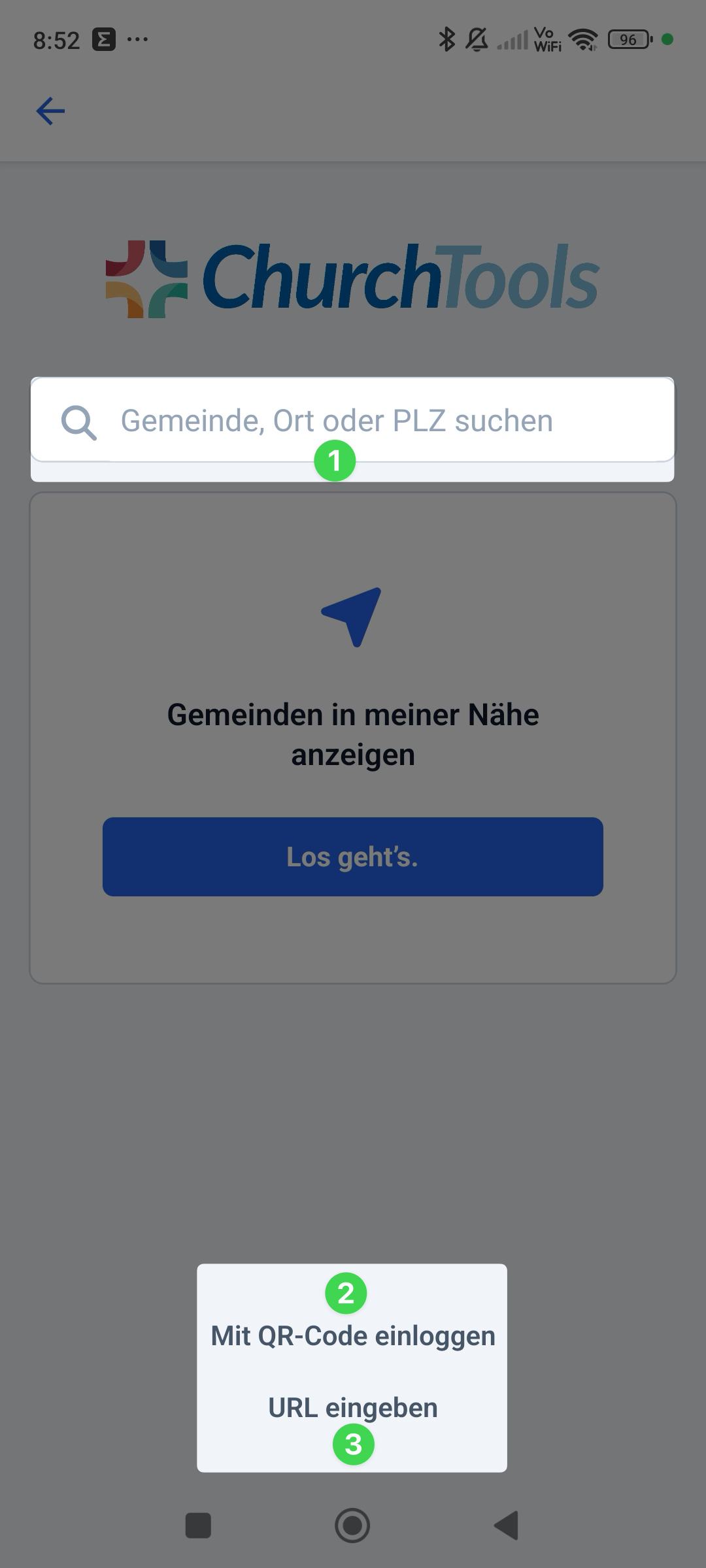
You can search for your congregation using the Finder (1), scan the QR code on the web (2), or enter your congregation’s ChurchTools URL (3).
1. Log in using Finder #
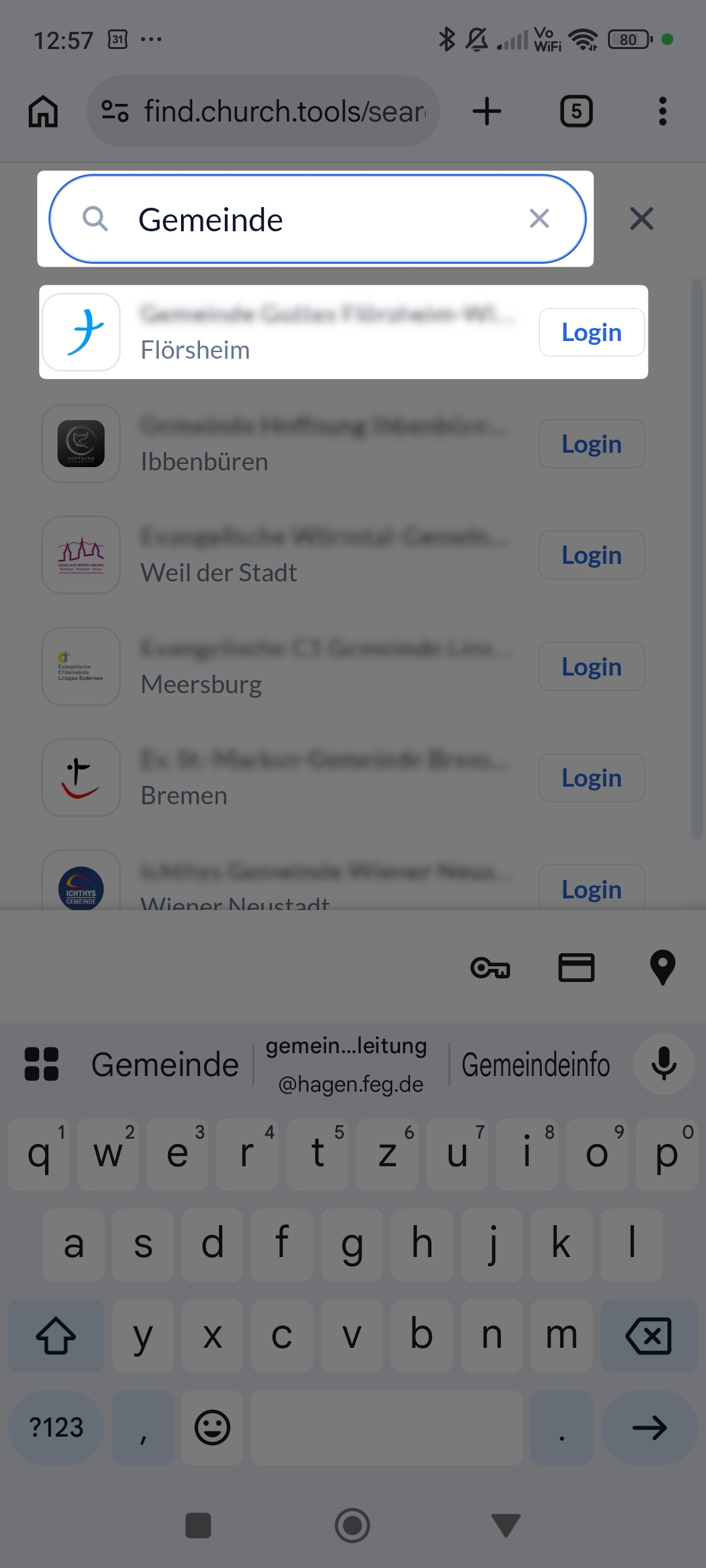
To find your congregation using the Finder, enter the name of your congregation in the search field (1—see above).
If your congregation is listed, click on the entry.
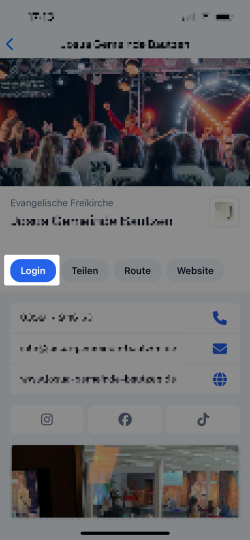
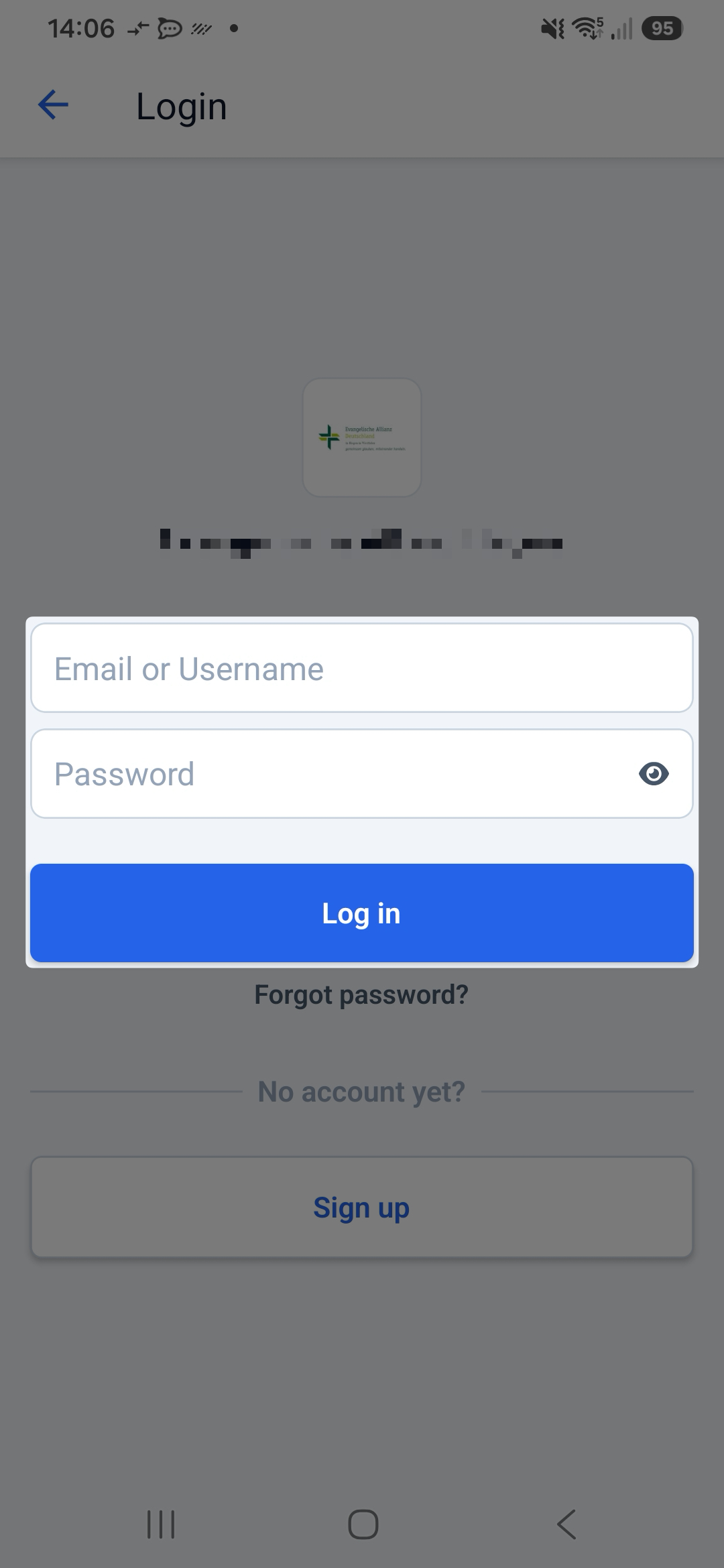
You are now on your congregation’s Finder page. Click ” Login” here.
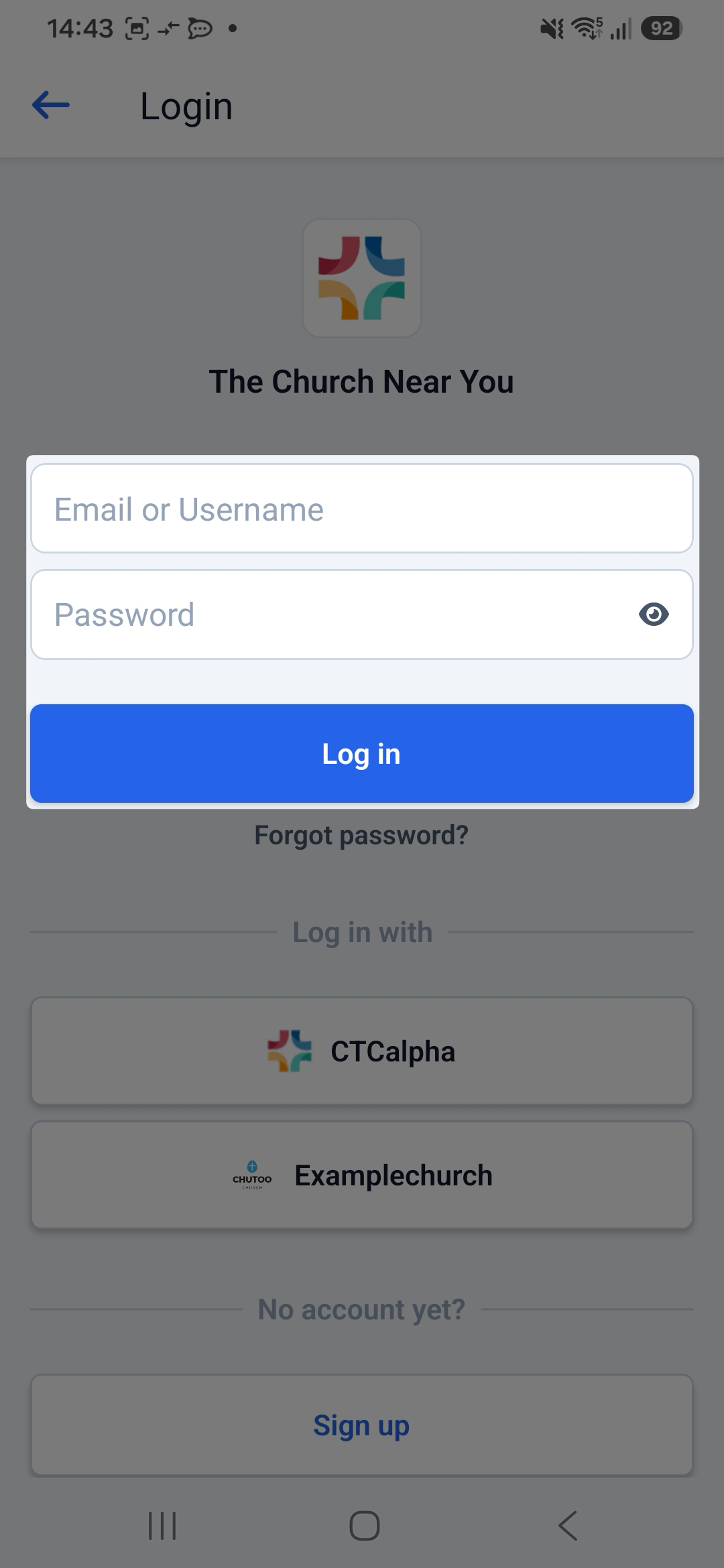
Next, enter your username (usually your e-mail address, which is on file in your ChurchTools account) and your password.
By clicking “Log In,” you’ll sign up for your account in the ChurchTools app and will be able to use all the features available to you.
2. Log in with a QR code #
Probably the easiest way to log in to the ChurchTools app is by using a QR code, which you can view in your account on the website.
Scan the QR code #
To do this, you’ll first need to log in on the web using a device other than your smartphone.
You can find our instructions for logging in on the web on the help page ” Registering and Logging In on the Web.”
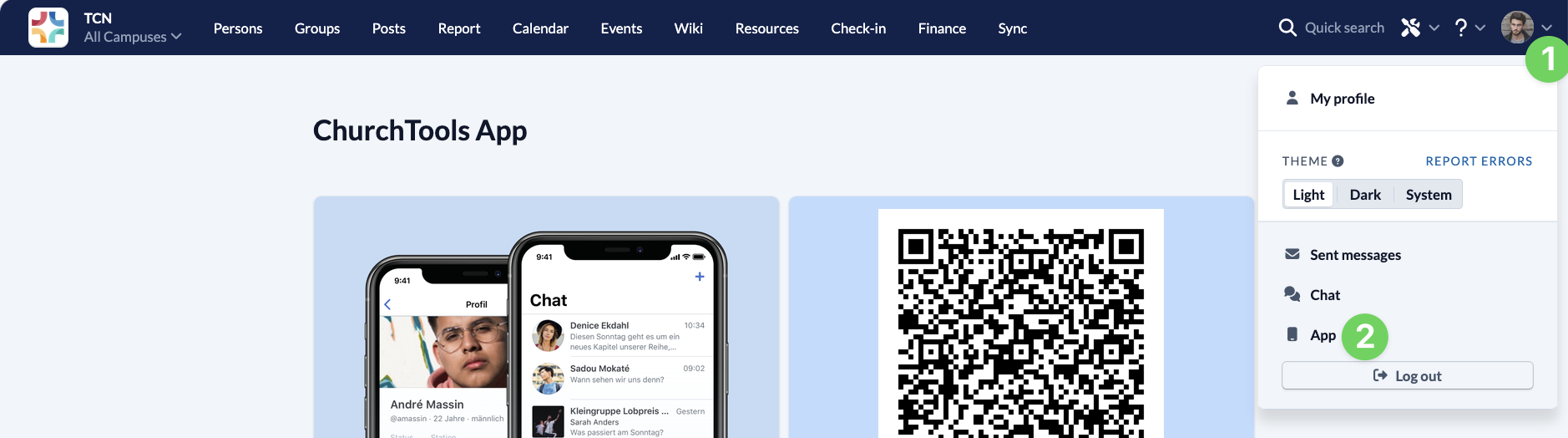
After you’ve signed up on the web, you can access the QR code through your user menu.
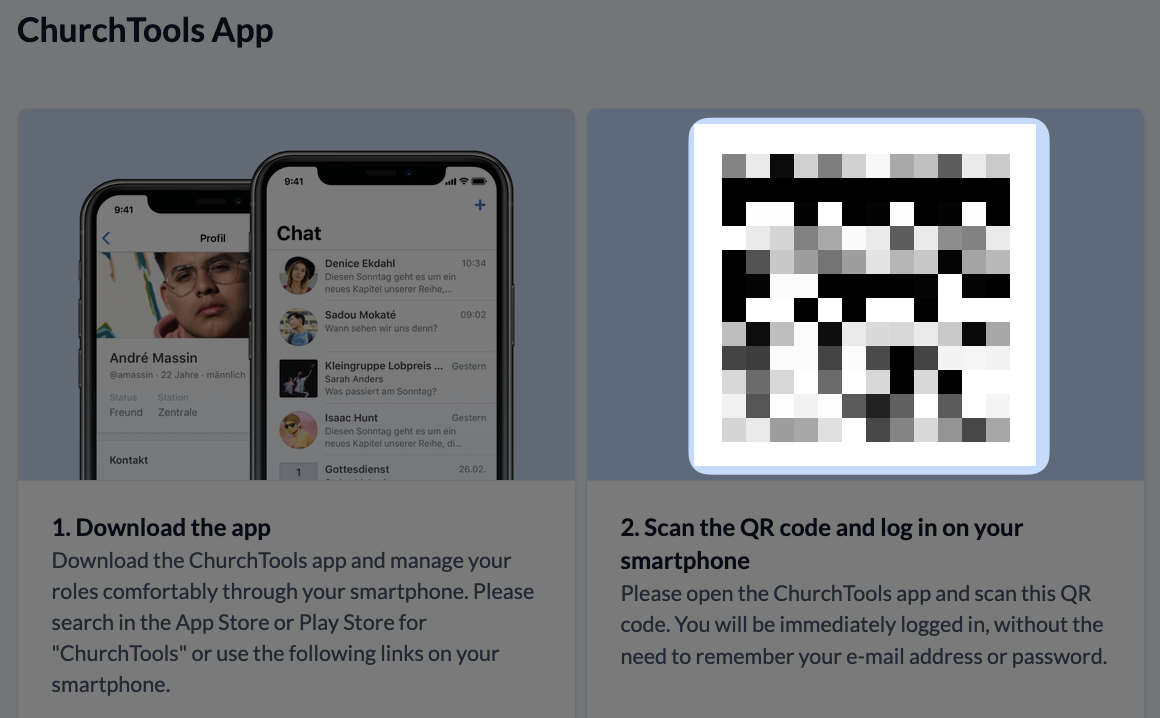
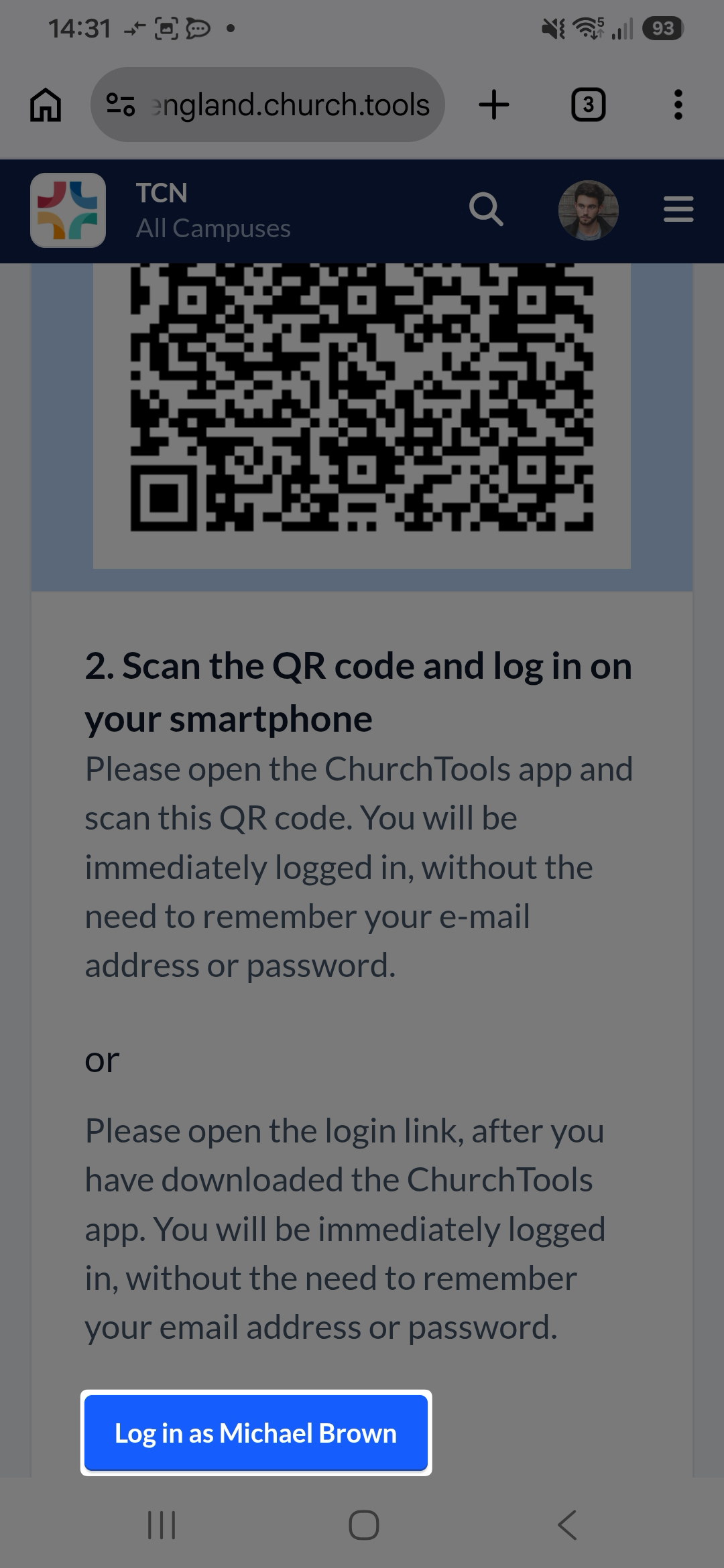
You can now scan this QR code in the app using your smartphone (2—see above), and you’ll be signed up automatically without having to enter your login credentials in the app.
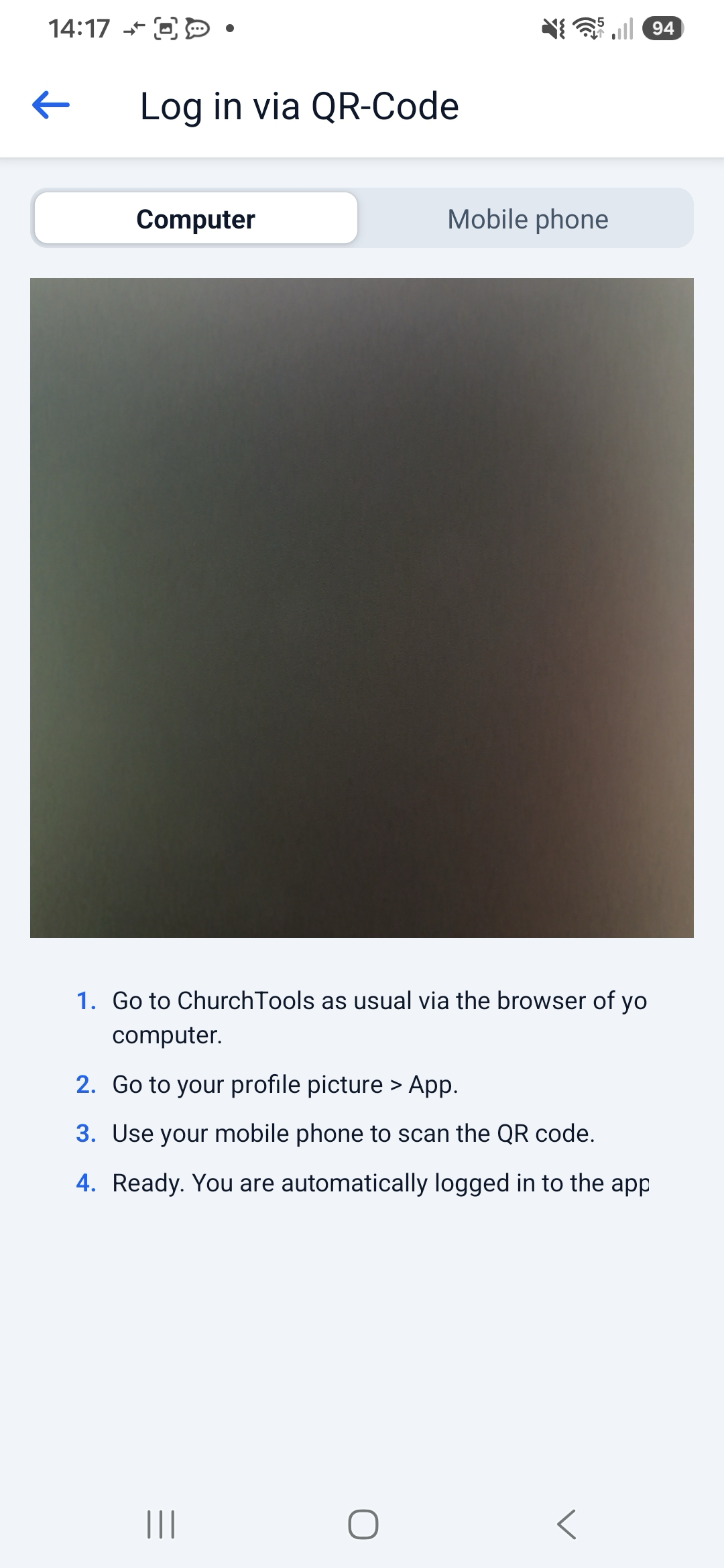
Use the Login link #
Alternatively, you can use the browser on your smartphone to sign up for ChurchTools on the web.
From there, click on your profile picture (1) and then on “App” (2).
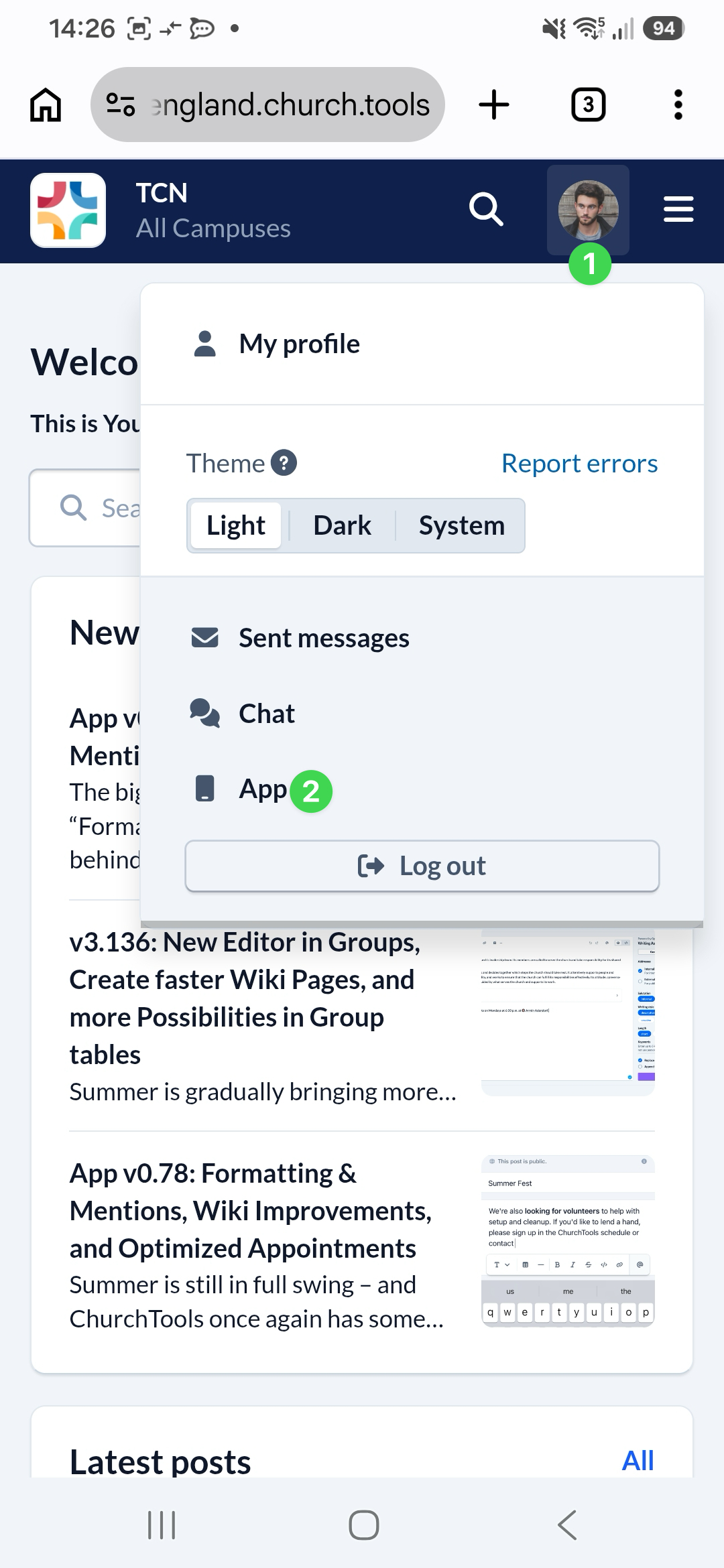
Below the QR code, you’ll find a button that automatically redirects you to the ChurchTools app (if you already have it installed) and allows you to log in without requiring you to re-enter your login credentials in the app.
3. Log in via URL #
If you know the URL for your congregation’s ChurchTools, you can also enter it directly in the app (see step 3 above) and then click ” Next.”
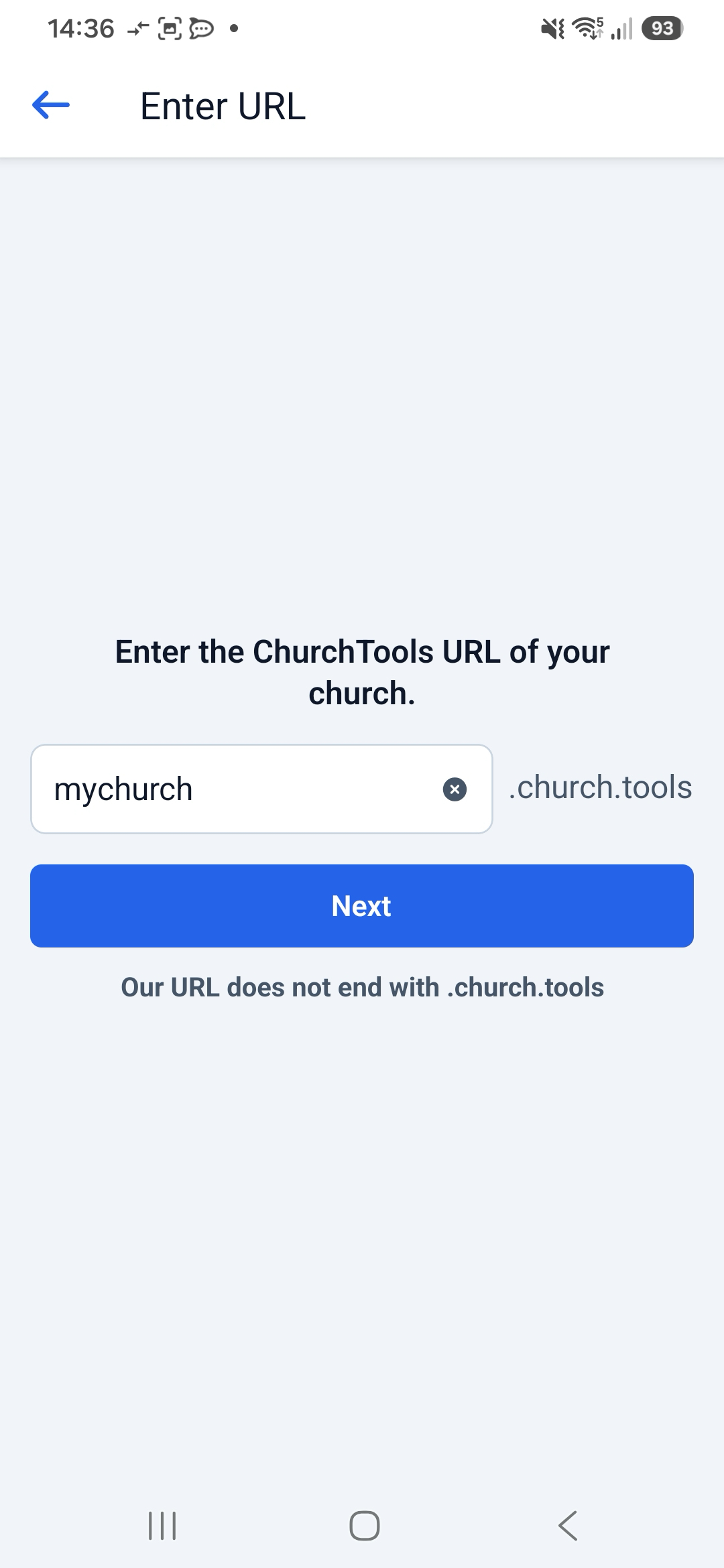
Then enter your login information, and you’ll log in to the app.