


ChurchTools provides an editor for editing text. You can use it to write, structure, and format text. For example, you can insert headings, lists, links, tables, images, and mentions. It uses the Markdown syntax.
What features does the editor offer? #
Depending on where you are in ChurchTools—whether on the web or in the app—the editor offers a customized set of features. For example, when creating posts, you have three heading levels available, while on wiki pages you can use six heading levels.
You can access many features directly using the buttons in the editor or by typing the forward slash “/”. If you’d like, you can also switch to source mode and use Markdown syntax there. For more information on the two available views— Preview and Source Code —visit our help page Text Editor – What views are available to me?
You can also access all editor functions using / commands. To do this, click inside the editor and type “/". A drop-down list will open, showing you all the options available in the menus.
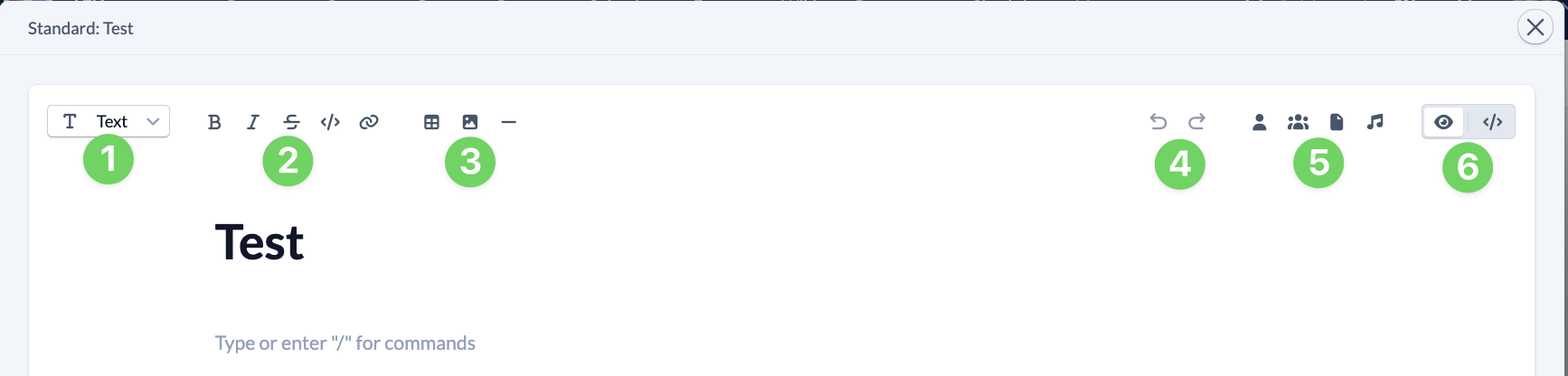
The header offers you the following options:
- To format paragraphs (1) or individual words and insert links (2), see also Text Editor – What formatting options are available?
- Inserting Tables, Images, and Divider Lines (3); see also Text Editor – How to insert tables, images, and divider lines?
- Undo or Redo Changes (4)
- Insert mentions of people, groups, wiki pages, and songs (5); see also Text Editor – What are mentions and how can I use them?
- Switch between the preview and the source code (6); see also Text Editor – What views are available to me?
Keyboard shortcuts #
Of course, keyboard shortcuts are also available. Here is a small selection of the most common ones. You can find more in ” Text Editor – What Formatting Options Are Available?”
| Keyboard shortcuts | Function |
|---|---|
| Ctrl+B / Cmd+B | Format in bold |
| Ctrl+I / Cmd+I | Format as italics |
| Ctrl+E / Cmd+E | Formatting Inline Code |
| Ctrl+K / Cmd+K | Insert link |
| Tab / Shift+Tab | Indent or outdent a list item, or navigate within tables |
| Ctrl+Z / Cmd+Z | Undo |
| Ctrl+Y / Cmd+Y | Restore |
| Ctrl+A / Cmd+A | Select All |
Tips for Organizing Your Content #
Well-structured content helps other users find information quickly.
Pay special attention to these points:
- Use headings if your text covers multiple topics.
- Use bullet points for several short pieces of information.
- Use numbering for steps that should be performed in a specific order.
- Use descriptive anchor text.
- Use tables only for information that is truly easier to understand in tabular form.
- Use images strategically and only where they support the content.