When you create a page in the wiki or write a new post, you’ll be using our text editor. Depending on where you are in ChurchTools—whether on the web or in the app—the editor offers a customized set of features. Here, we’ll explain how to insert these so-called Mentions into your text.
Mentions are links to ChurchTools content, such as people, groups, songs, or wiki pages. They are visual elements that can be embedded directly into the text and are graphically much higher quality than simple links. This gives you many options for highlighting, for example, contact people or sign up groups on your wiki pages or in your posts.
How to add a Mention? #
To do this, enter the forward slash “/" ” in the text and select Mention section which element you want to insert. Alternatively, you can also insert the mention using the corresponding icon on the right side of the editor.
You can mention the following elements:
- Person – link directly to a person, e.g., the leader of the Scout troop or the preacher for the upcoming church service
- Group – link to a group, such as your congregation’s home groups or the sign up group for the congregation retreat
- Wiki page – link to a relevant wiki page, such as the current cleaning schedule or the collection of games available for loan at the congregetion
- Song – Link to a song from ChurchTools, e.g., the new songs for the music team or birthday song requests from those turning 80 or older
What display modes are available, and how to switch between them #
By default, a mention is included in the display option In the text by default.
When you hover your mouse over a mention, a small menu opens. Here you can …
- … change the view is displayed via the drop-down menu.
- … click the gear icon to access the Settings . A preview window will open showing the available display options for this mention. For wiki pages and groups, additional helpful display options are available here (see below).
- … click the crossed-out chain icon to remove the link.
- … use the arrow icon to open the linked page in a new browser tab.
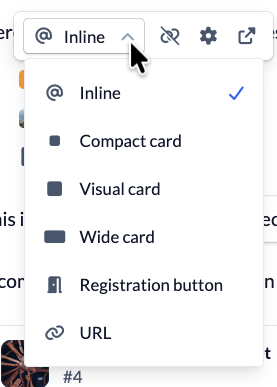
You can display a mention in various ways. The editor offers the following options:
- In the text – Displays the mention concisely within the text.
- Classic List View (only for wiki categories and some group options) – Displays the items in a classic list.
- Compact Card – Displays a small card with an image or icon and a name.
- Wide Map – Displays the mention as a wide map across the available page width.
- Visual Map – Displays a larger map with a stronger visual focus.
- Registration Button (for groups only) — Dynamically shows whether you can join a group, for example, or whether you’ve already joined it (see below).
- Link – Converts the address into a simple link. It is then no longer a mention, and you can no longer easily switch to a different view via the menu.
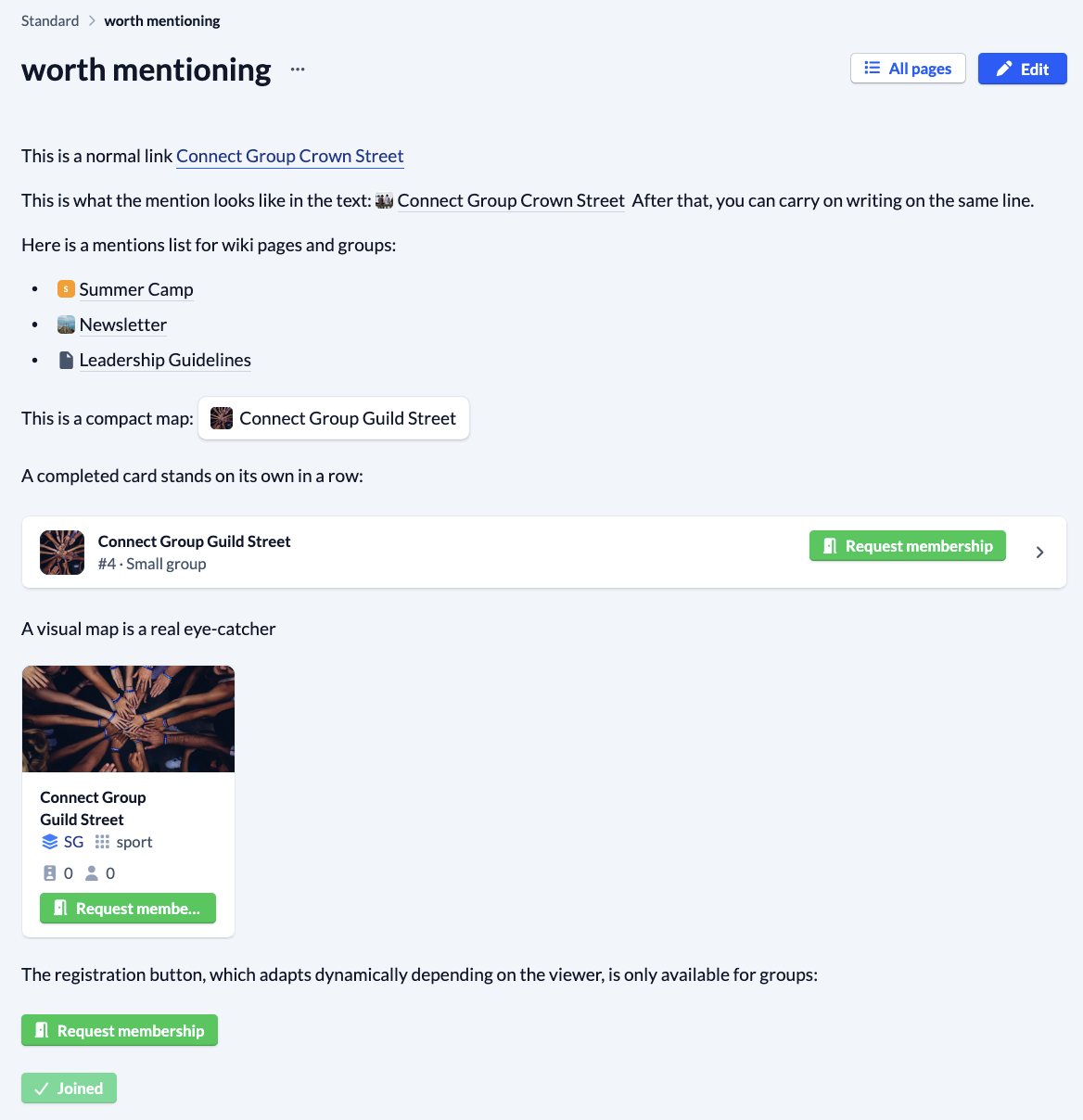
At the end of this page, we’ve compiled all the images into a single screenshot. Scroll all the way down and take a look.
The Registration Button #
The “Sign up” button is a particularly convenient feature for individual groups, as it automatically adapts to you as the viewer. Depending on the group’s visibility as well as your Login and membership status, it shows you, for example, whether you can join the group or are already a member. If you don’t have access to the group or its content, a corresponding note will be displayed instead.
This makes the “Sign Up” button ideal, for example, for creating posts or wiki pages about recreational activities or for inviting people to your next summer party. With a single click, interested people can sign up right away without having to follow any additional links.
The “Sign up” button will also appear on many group cards if you’re not yet a member of the group.
Mentions Settings #
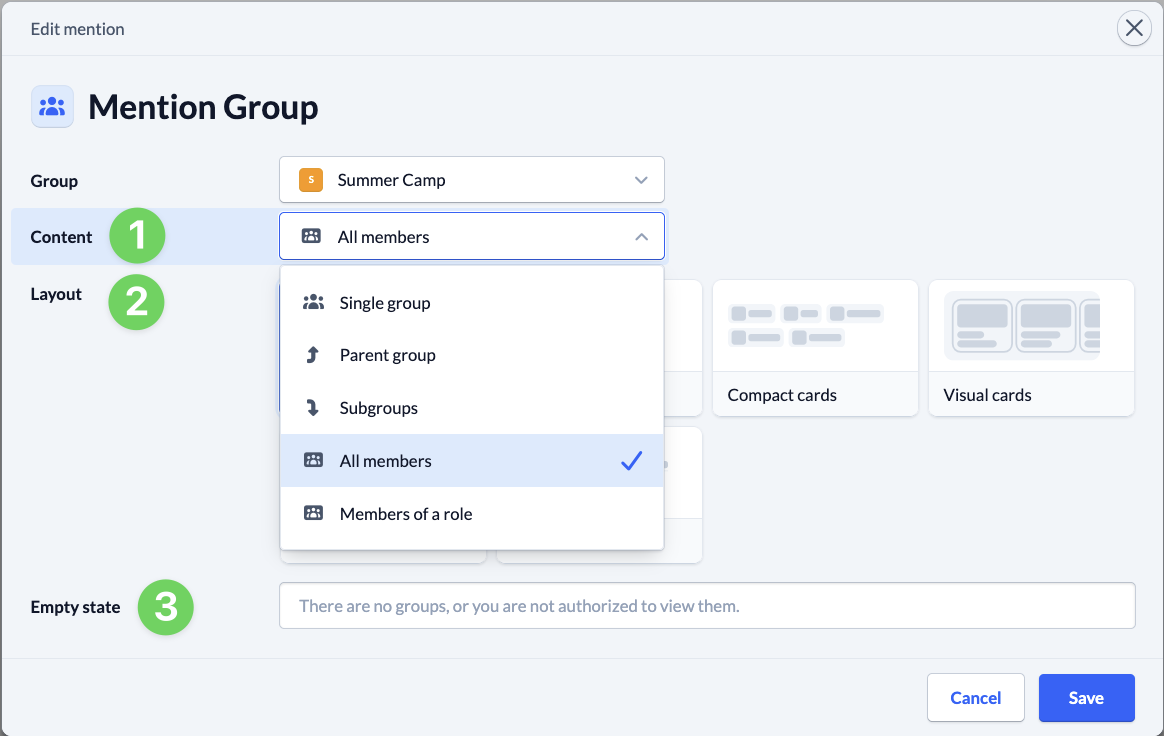
Click the gear icon in the menu to open the mentions settings. Depending on the mention, additional options will be available here.
- Contents (1) – Here you can choose what should be displayed for wiki pages and groups, e.g., all pages in a wiki category or only the members of a specific Role within a group.
- Display (2) – shows you the visualizations available for the current mention and the selected content.
- Empty State (3) – In this field, you can specify what users see when there is nothing to display or when they do not have permission to view the content.
A small gallery… #
Here’s what all the displays look like for groups, for example: