When you create a page or write a new post on the wiki, you’ll be using our text editor. Here, we’ll explain the two views available in the editor when you use it on the web.
You can use these buttons to switch between the two views when you’re in the editor’s full-screen view.
Preview #
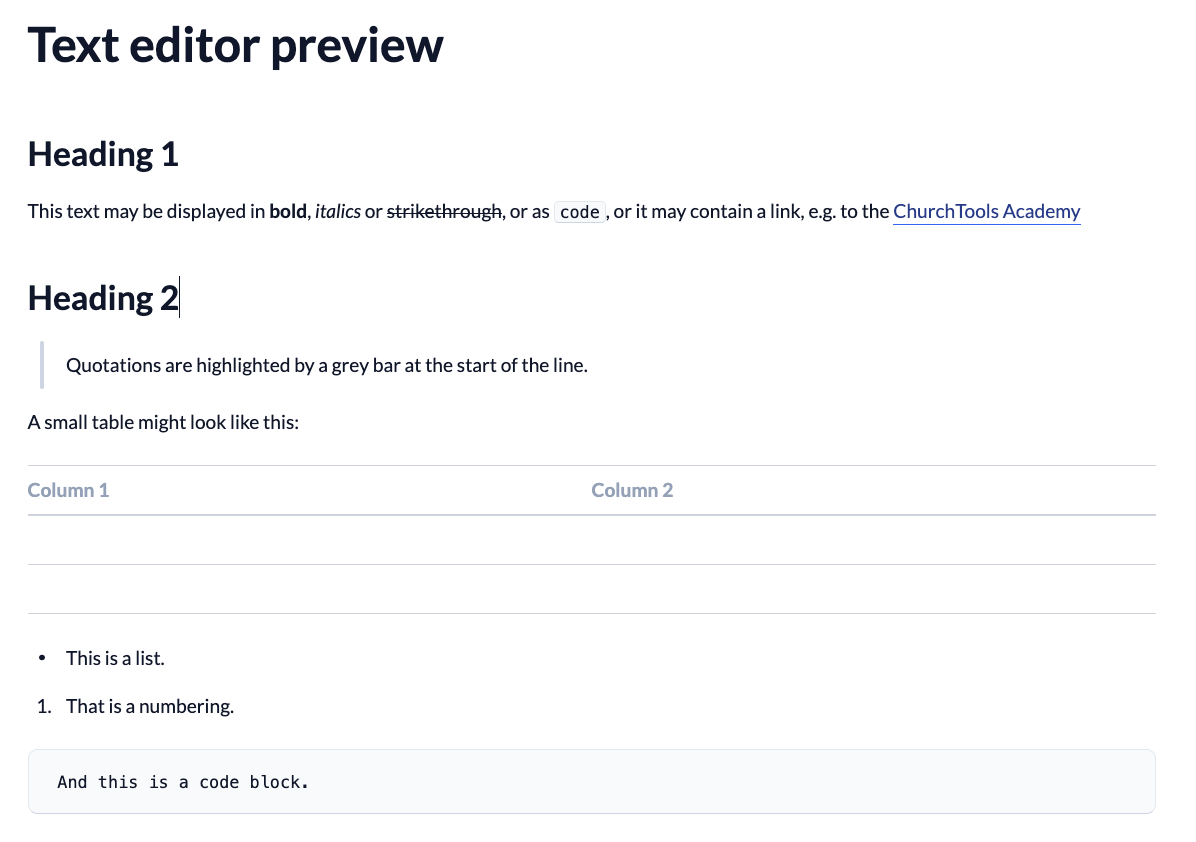
In the preview, you edit your text directly in the formatted view. This means that all headings, lists, links, code blocks, and so on are displayed there exactly as they will appear after you save your changes.
Source code #
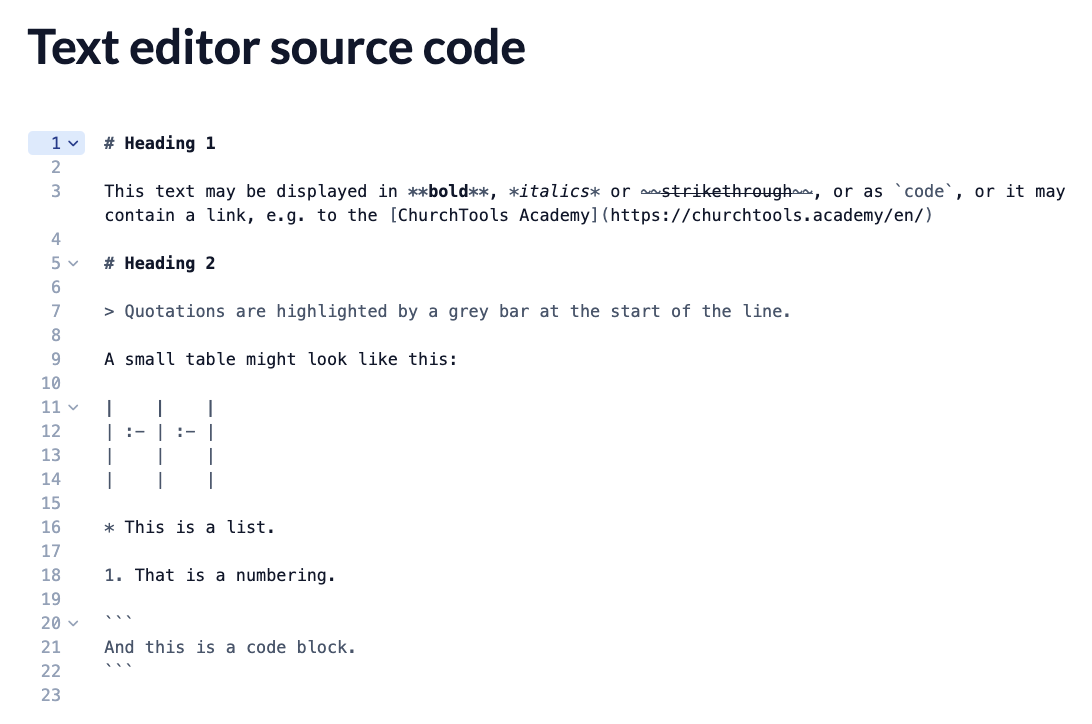
In source view, on the other hand, the same content is displayed as text using Markdown syntax. This means you see not only your text but also the control characters used for formatting. Line numbers are also displayed. The source code is helpful if you want to check formatting in detail or write directly in Markdown. However, you don’t have to use it to operate the editor.
You can collapse some of the elements there. Only the first row of each section will then be displayed. To do this, use the small down arrow in the first row next to the row number. If an element is collapsed, you can make it fully visible again by clicking the small box with the three dots. This works for tables and code blocks, as well as for paragraphs following a heading.
Examples #
To help you quickly get an overview of the difference between the two views, we’ve included an example here.
Here’s what a text might look like in the preview:
Here’s what the same text looks like as source code: