


With the Check-in module, you can quickly and clearly record who is attending a group meeting – whether it’s a church service, a children’s group, a leisure activity, a team meeting or a conference. Check-in ensures clear processes, reliable participant management and supports you in organizing your meetings. New visitors can also be registered easily so that you always know who was there.
It is particularly practical that you can manage several groups and appointments at the same time with the check-in. This allows you to keep an overview at all times, even with parallel events – such as several children’s services. The module can also be used flexibly on any number of end devices, for example on a laptop and several smartphones.
Another plus: you can print name badges directly at check-in. This way, all participants are easily recognizable and it is much easier to address them – whether in children’s work, in church services or at larger events.
What can I find where? #
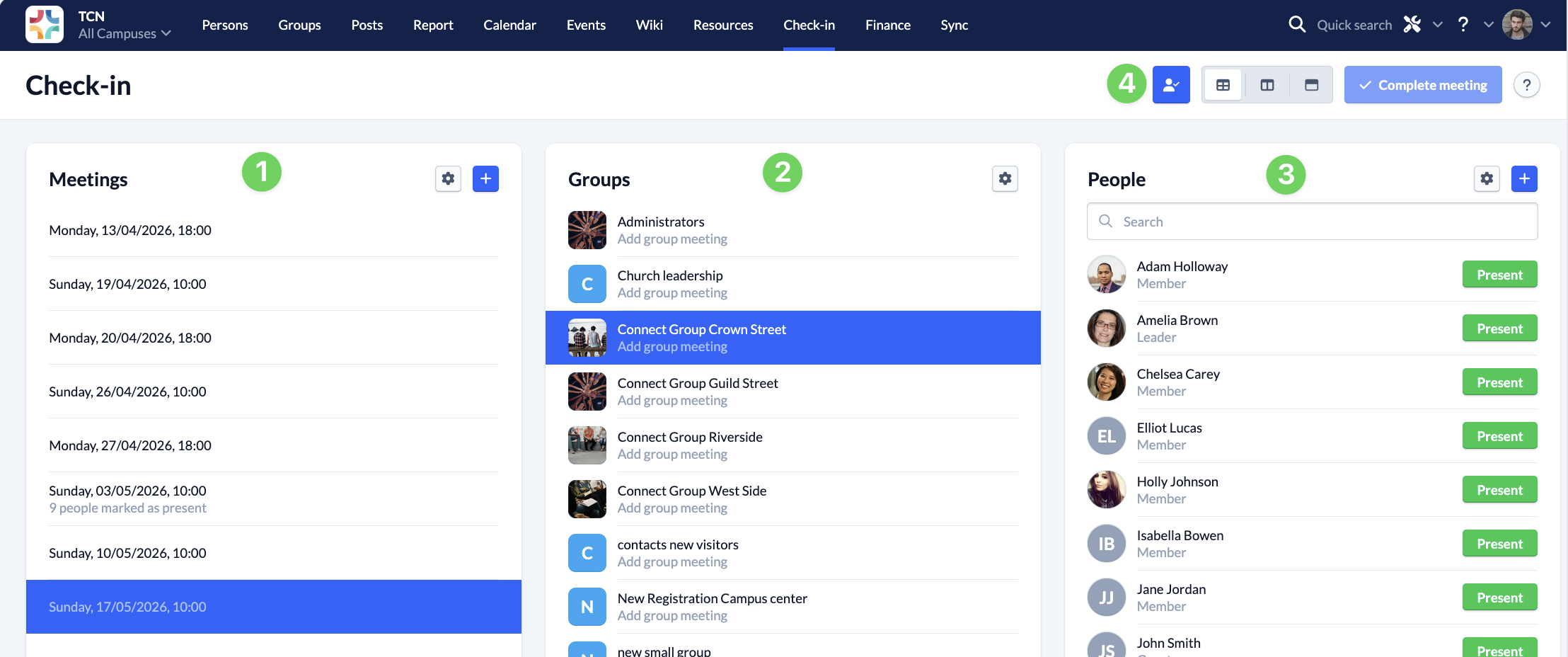
You can use the two columns on the left to define the meeting for which you want to record attendance.
On the far left in the Meetings column (1), you can display dates from the calendars of your congregation. To do this, select a calendar using the cogwheel. You can also create a new group meeting quickly and easily using the plus sign.
The middle column Groups (2) lists all groups in your congregation so that you can directly select the right group for the current meeting. You can use the cogwheel to limit the list to all subgroups of a specific supergroup.
The People column (3) on the right-hand side is the actual “attendance list” in which you enter who is there. It shows you all the people who belong to the group you have selected in the middle column. You can also create new people here.
- Use the Present or Reset button to mark the presence of a person.
- You can use the search field to find any group member quickly and reliably, even for longer lists.
- You can use the plus sign to search for people and create new people. When you start your entry, the last option in the list is Create person.
- The cogwheel helps you to sort the list by first name or to display only group members with a specific Role.
You can use the options (4) at the top right to customize the view of the page to your requirements. You can also complete the meeting here.
Important notes #
- The groups that you are allowed to see and for which you have permission to see and hold group meetings are visible to you in the check-in.
- Accordingly, only appointments and people who belong to these groups are visible to you.
- The present buttons on the people and the complete meeting button at the top right are inactive as long as you have not selected a group and a meeting.
- If you mark the first group member as present, a group meeting is automatically created in the group if none previously existed for the selected date.