You can create groups in ChurchTools to organize the people in your congregation to be and work together. You can create either one or several groups at once.
To do this, navigate to the Groups module (1) and click on + Create group (2).

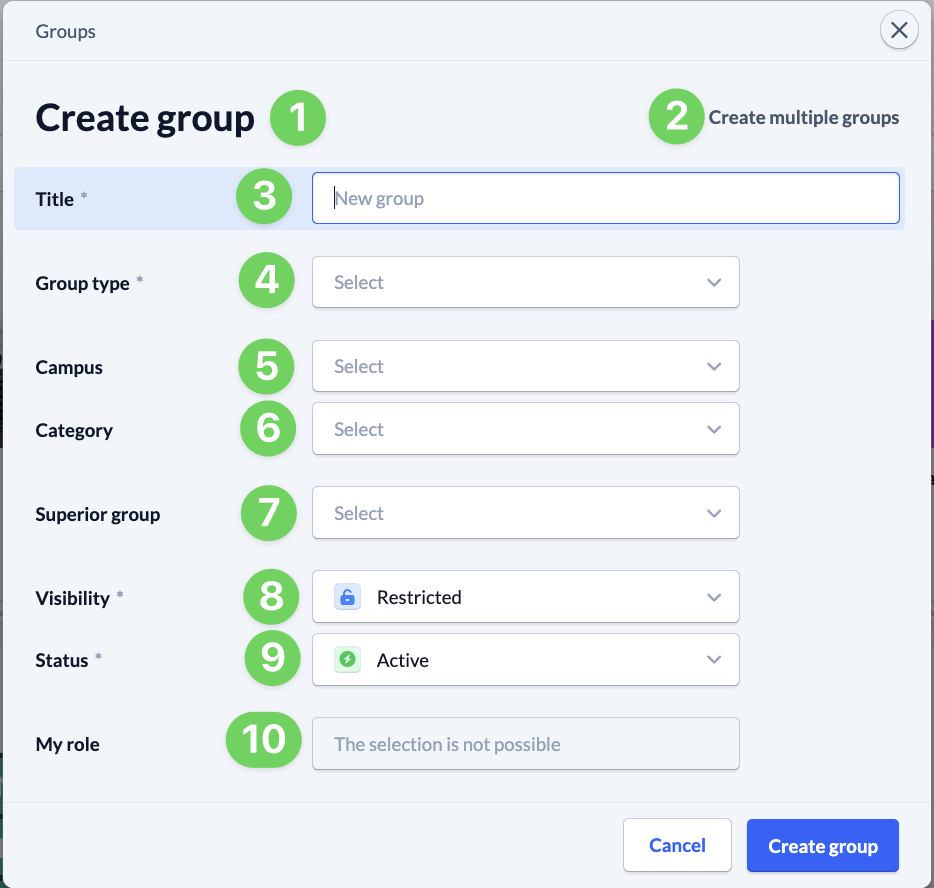
By default, the dialog box for creating a single group (1) opens. If you want to create several groups at once, click on Create multiple groups (2) in the top right-hand corner.
First enter the title (3) of the new group. If you create several at once, enter each title in a new line.
All other parameters are similar to those of a single group. For the sake of readability, we do not use the plural.
- (4) What type of group does the group belong to?
- (5) To which campus does the group belong (optional)?
- (6) To which category does the group belong (optional)?
- (7) Should the group be assigned to a supergroup (optional)?
The campus is displayed for the supergroup. This makes it easier for you to make a selection if you have supergroups with the same title at several campuses. - (8) For whom should the group be visible (optional)?
- (9) What status should the group have?
- (10) Which role should be automatically assigned to you when you create it (optional)?
Once you have entered everything, save (11) your new group(s).