


This guide explains how ChurchTools administrators from congregations of the Evangelical Regional Church in Württemberg can migrate existing ChurchTools systems to Digital Congregation Management.
My congregation already uses ChurchTools—how can we continue to use it? #
The existing ChurchTools system needs to be migrated to the ELKW portal. In this article, we’ll show you how to do that.
Can I continue to use ChurchTools via the same link as before? #
No, once you have accessed ChurchTools via the Digital Parish Management system on the ELKW portal, you will no longer be able to access it using the previous link—only through the ELKW portal. People who access it as before (i.e., not through Digital Parish Management) can continue to use the existing link.
Integration with Digital Municipal Management #
The following steps explain how to integrate your existing ChurchTools with Digital Church Management.
Step 1: In order for your ChurchTools to be connected to the Digital Congregation Management system, the Evangelical Regional Church requires a statement of consent from you. This statement must confirm that the current URL (the link to your ChurchTools) may be moved. This will ensure that your ChurchTools is accessible in the future both to external users and through the Digital Congregation Management system.
Please send an e-mail to gemeindemanagement@elk-wue.de that includes the following:
- the previous ChurchTools URL
- a statement allowing the URL to be moved
Now you’ll need to wait for confirmation that the URL has been moved. Once you receive that confirmation, you can proceed with the following steps.
Step 2: Sign up for ChurchTools as usual using the same link as before.
Step 3: Click the circle in the upper-right corner, then click My Profile. Here, you must replace the e-mail address you entered previously with the e-mail address you received in a letter sent by mail.
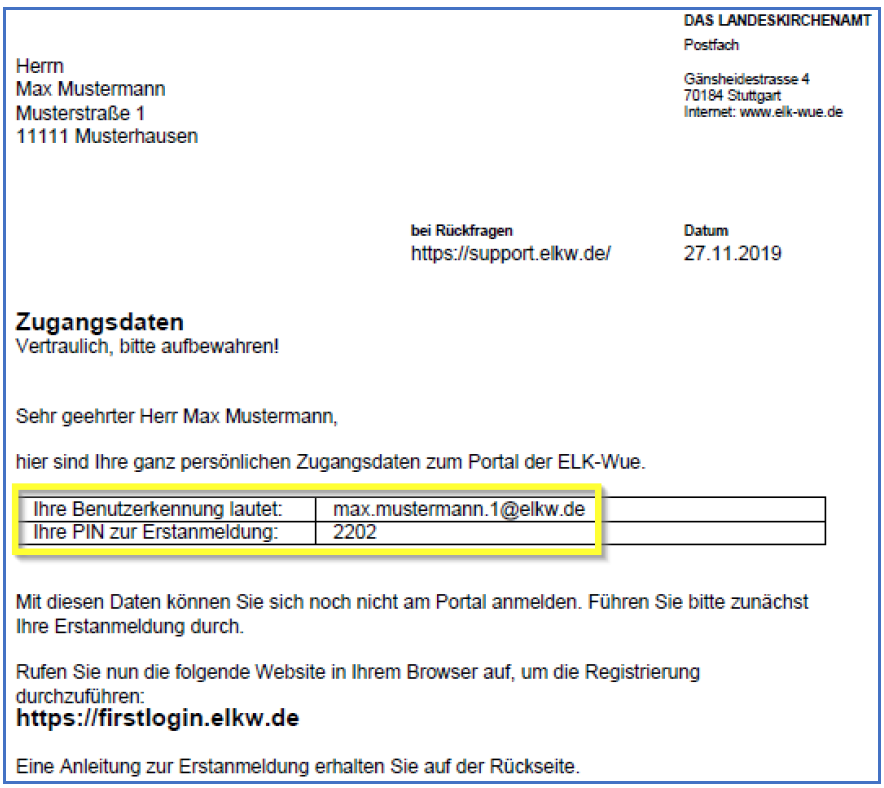
Step 4: Perform deregistration for ChurchTools.
Log in to the ELKW portal for the first time. The letter you received by mail provides more detailed instructions on how to do this.
Step 5: After your first Login, log in at https://dgm.elk-wue.de/ . Now, log in to the portal and request access to the ChurchTools application. You can find instructions on how to do this in this guide.
Step 6: Once your application has been successfully processed, all features should be available as usual when you access ChurchTools through the ELKW portal.
Step 7: The e-mail address of every user who is already set up in ChurchTools and who will need to access it through Digital Church Management in the future must be changed. To do this, go to Digital Church Management in ChurchTools and open the People module Here, click on the name of the person whose e-mail address you want to change, and enter the new address under “E-mail.”
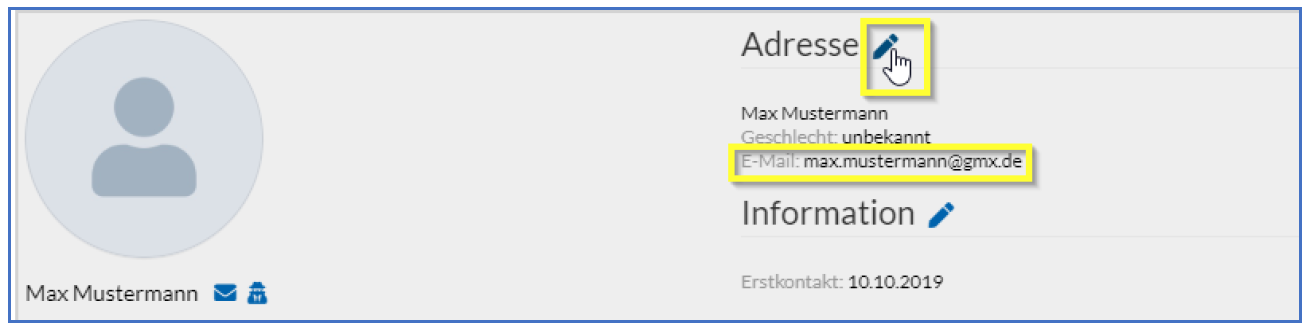
Old e-mail address: max.mustermann@gmx.de. Click the pencil icon to change the address.
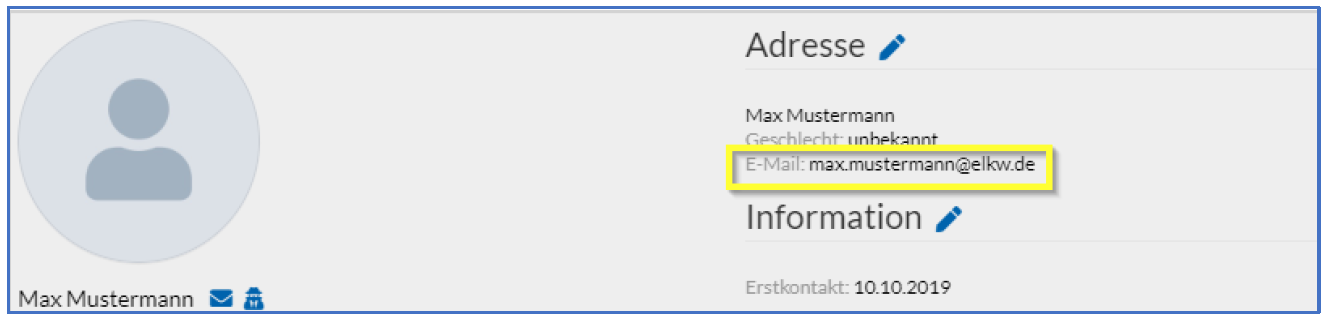
How do I get the users’ new e-mail addresses?
When a person registers on the ELKW portal, they receive a letter with their login information and a note stating that their e-mail address must be provided to the ChurchTools administrator.
Why is this necessary?
If the e-mail addresses of existing users who will access the system via Digital Community Management in the future are not updated, a second user with the same name will be created in ChurchTools. In that case, existing structures (groups, roles, calendars, etc.) cannot be used and must be recreated for that user.
Step 8: After you’ve changed the users’ e-mail addresses, let them know. Now they can perform their first Login.
Yours, ChurchTools has now been integrated into Digital Church Management and can be accessed from there. All users who do not have access to the ELKW portal can continue to access your ChurchTools via the existing link.