


Keeping in touch is extremely important when you are with people. ChurchTools offers you different ways to get or stay in contact with your group members. One option is to send an e-mail to all group members or to a single person. We explain how to do this in this guide.
Call groups #
In the groups module, you can call up your group.
Send e-mail to everyone #
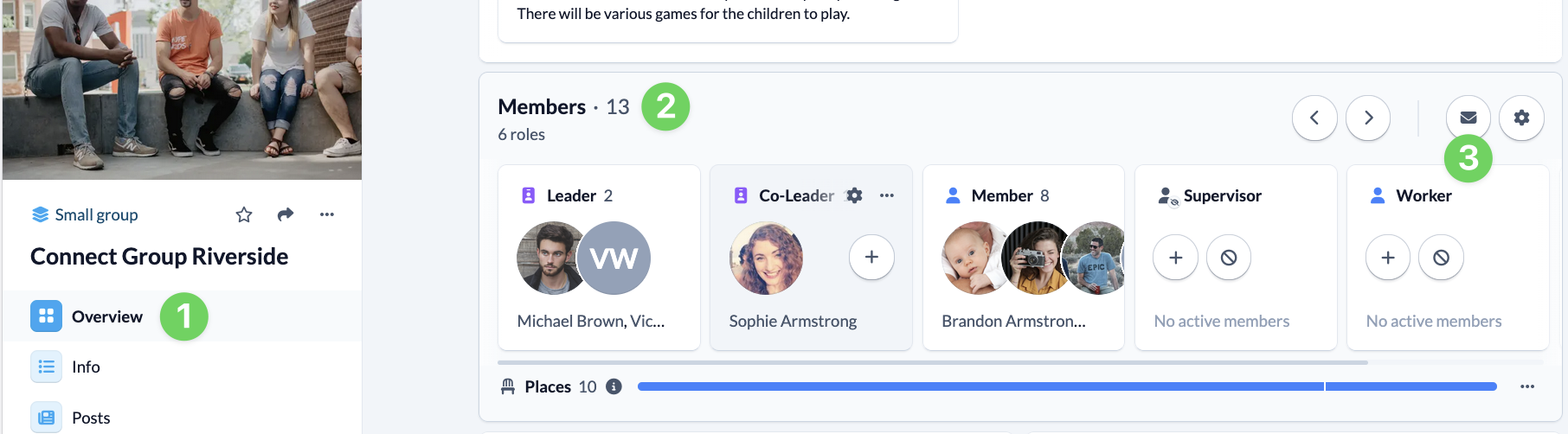
To contact all members of your group, click in the overview (1) under Members (2) on the envelope (3).
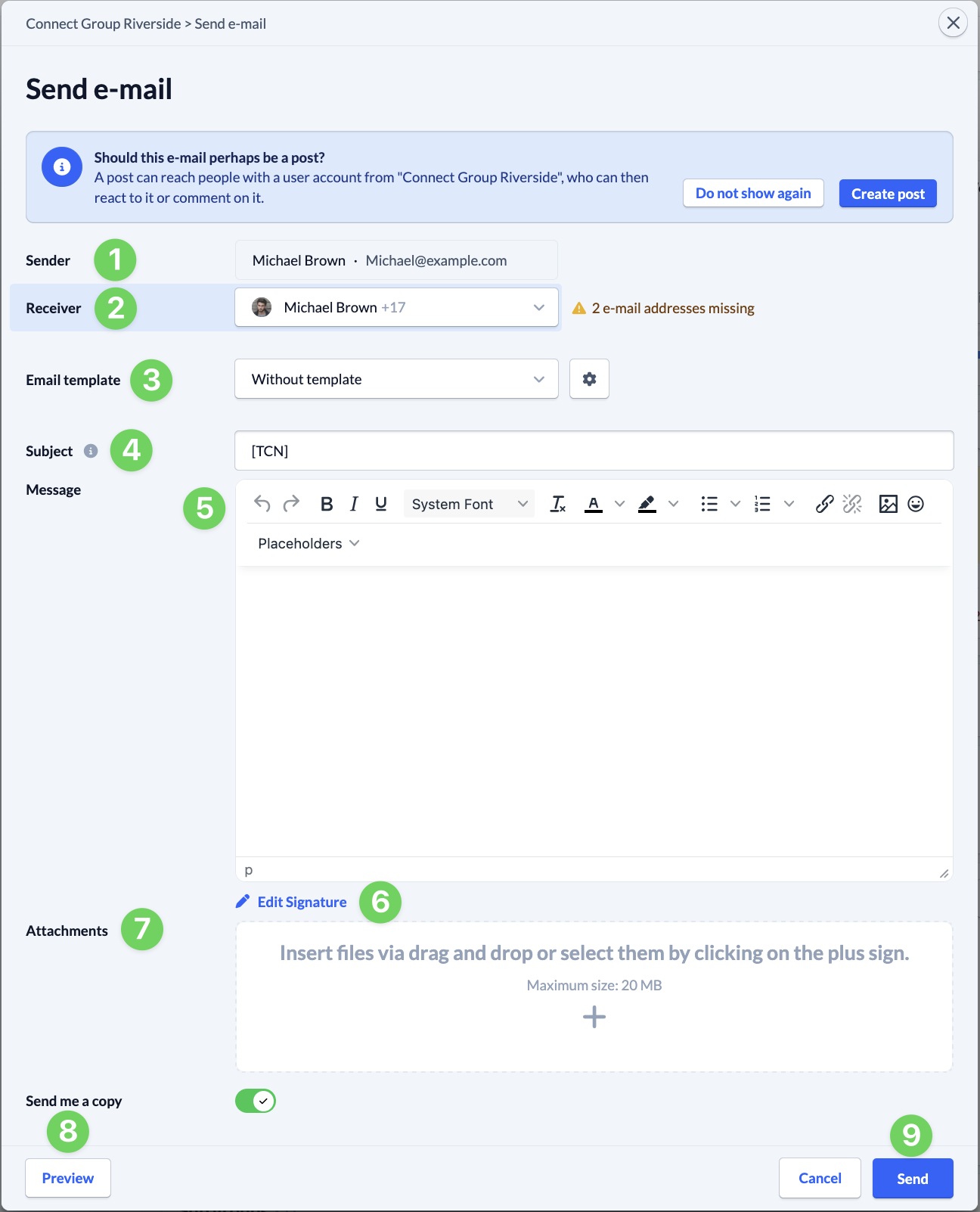
(1) The sender is prefilled with your data.
(2) The recipients of your e-mail are displayed here. You can also remove them from the list if you wish.
You can also search for and add additional recipients. If no e-mail address is stored for one or more recipients, the members concerned will be displayed here and you can remove them as recipients.
(3) In ChurchTools you can store e-mail templates that you can use here for your e-mail.
(4) Under Subject, enter what your message is about.
(5) This is where you write your message. ChurchTools offers you placeholders for names etc.. We explain how to do this in our article on using placeholders in e-mails.
(6) If you wish, you can store a signature in ChurchTools that will be inserted in every e-mail you write.
(7) If you want to send an attachment with your e-mail, either drop it in this area or search for the file using the plus symbol and upload it.
(8) In the preview, you can see how your message will be received by your recipients.
(9) If you are satisfied, send your e-mail.
Writing an e-mail to a single person #
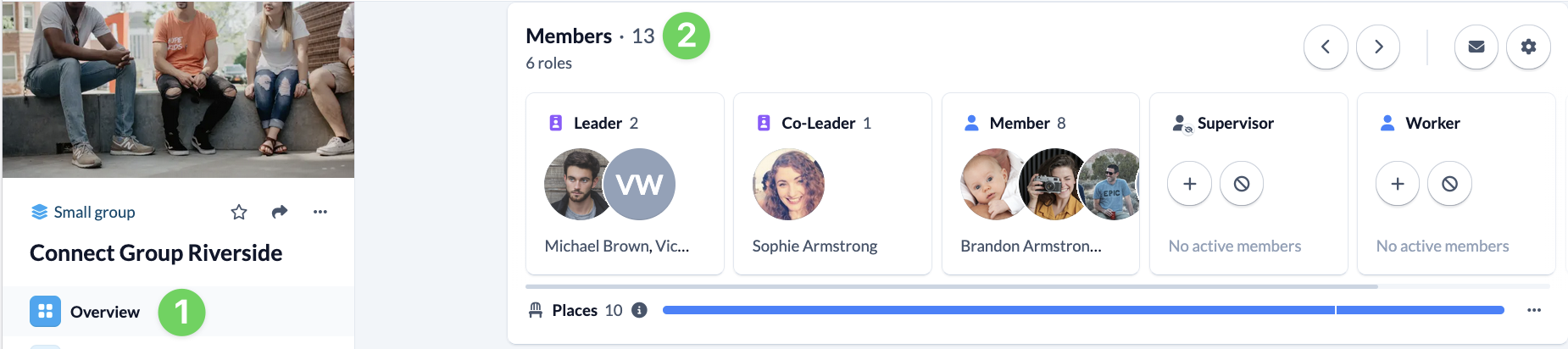
To contact an individual person in your group, click in the overview (1) on Members (2).
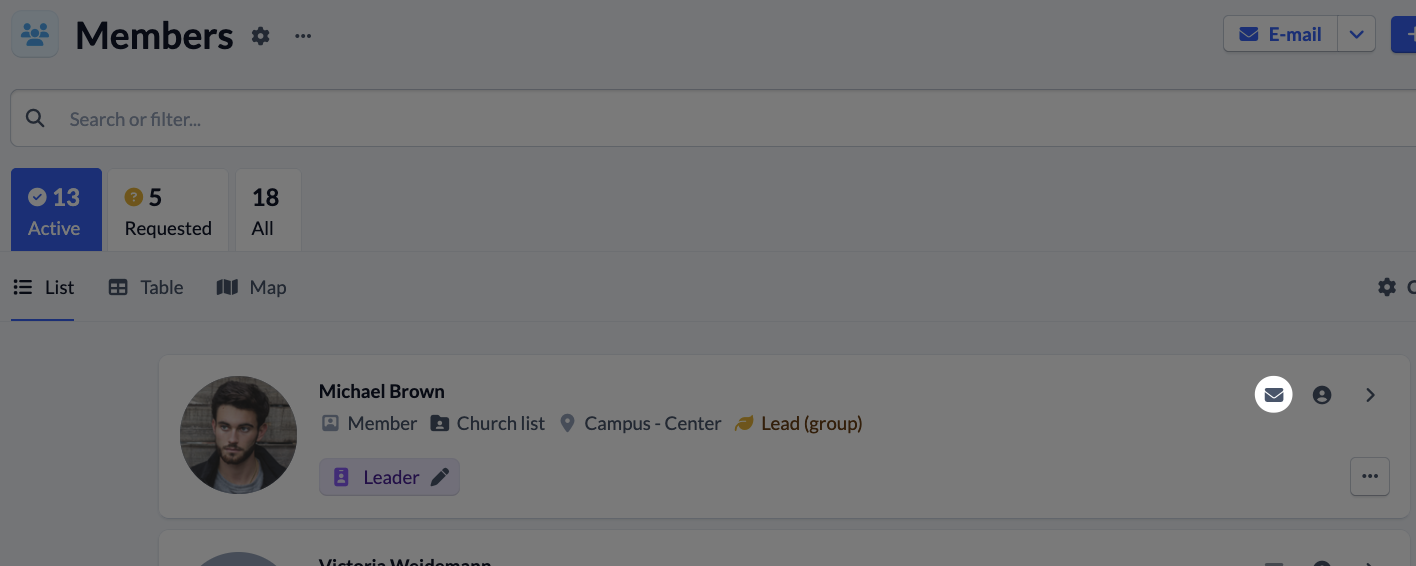
In the list, click on the envelope at the end of the desired person’s line.
The same dialog box opens here as when sending an e-mail to all group members, see Compose e-mail to all.