Use the person filter to find the people in your congregation whose membership you want to automate.
Call up settings for “Automatic membership” #
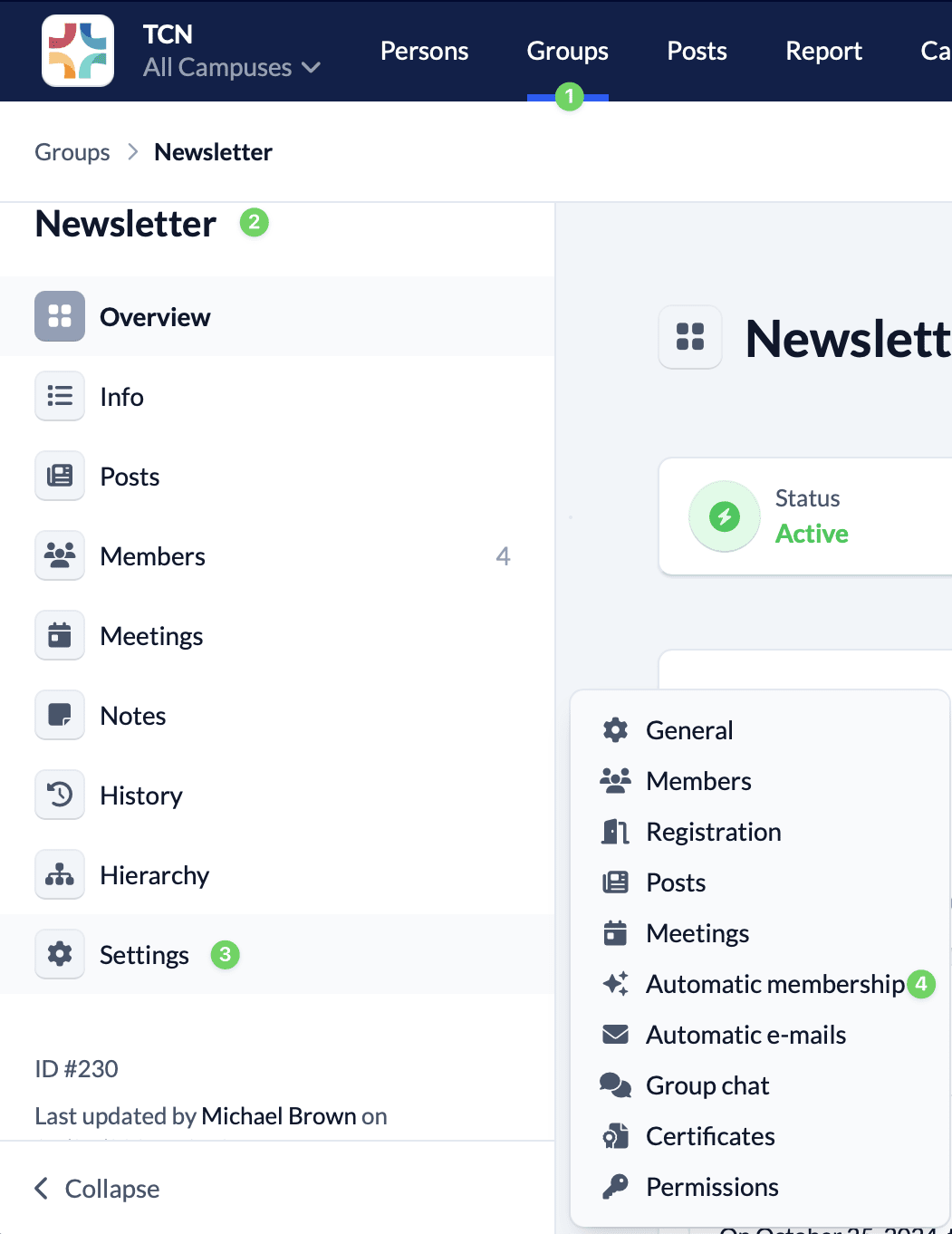
In the Groups module (1), call up your group (2) and open the settings (3) in the menu on the left-hand side. Here you will find the menu item Automatic membership (4).
Set personal filter #
In the upper half of the “Automatic membership” page you will find the person filter, which you can use to filter out the people in your congregation whose membership you want to automate for your group.
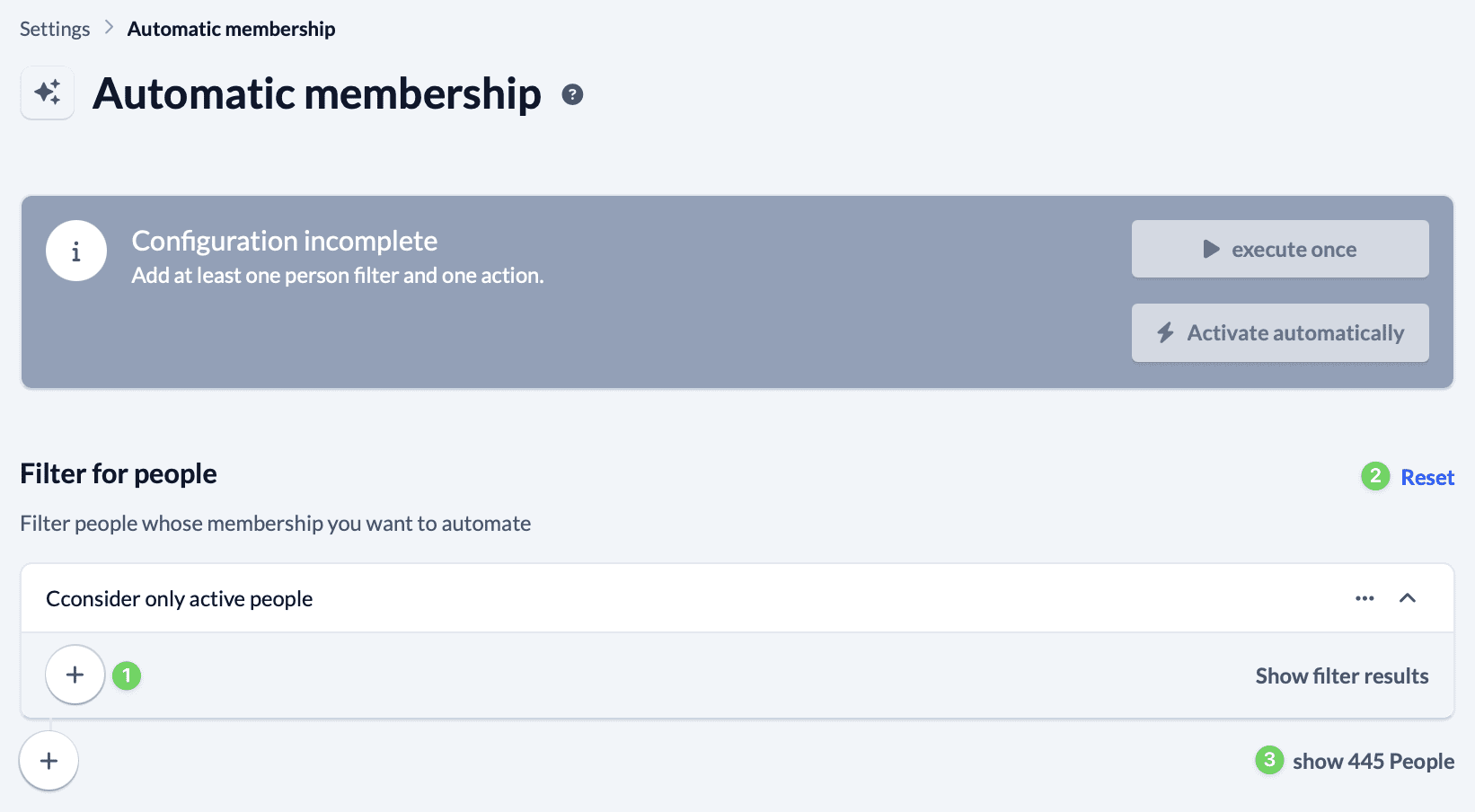
Use the plus symbol (1) below the heading People filter to set your filter. Use the Reset button (2) to reset the filter and under … Show people (3) you will see a list of all the people you have filtered so far. Here you can check at any time whether your filter settings match.
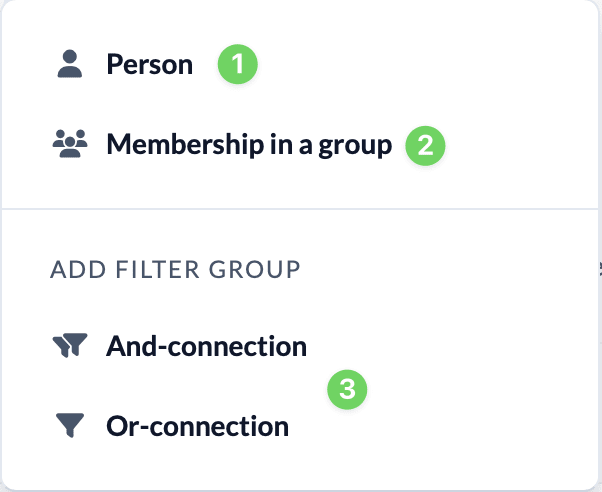
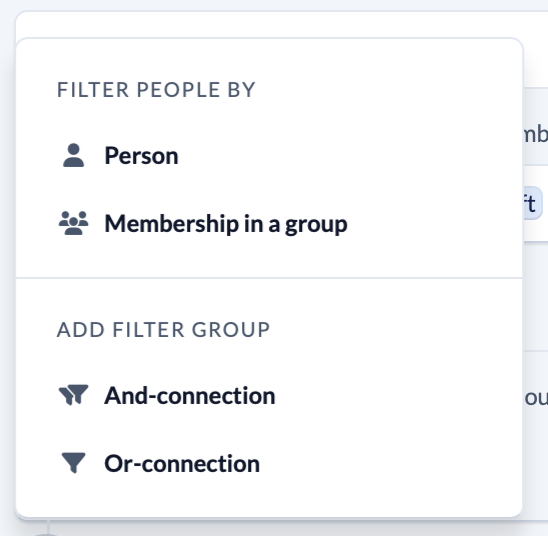
Use the plus sign to filter the people in your congregation either by their direct characteristics as a person (1), such as name or zip code, or by their membership of a Group (2).
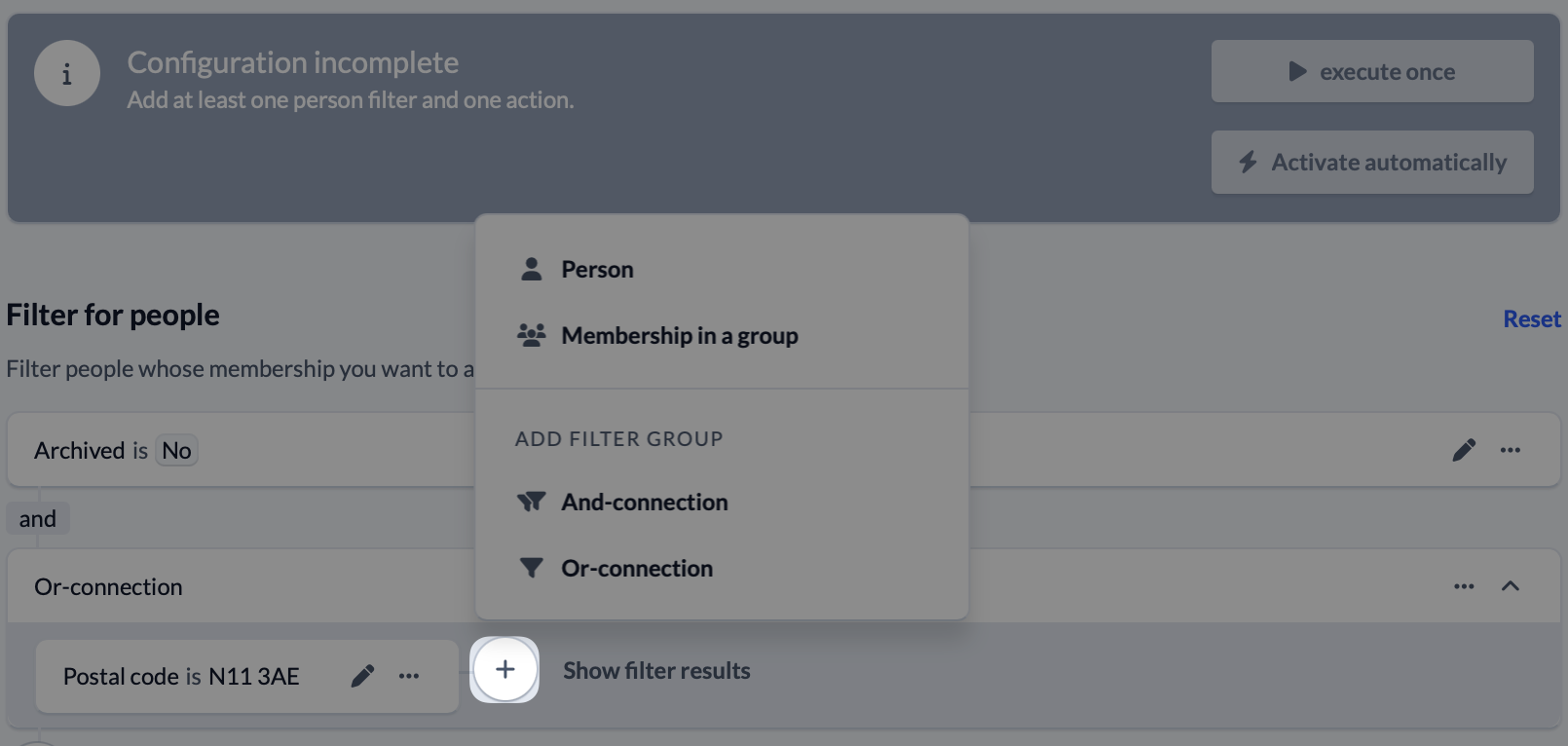
If you combine several filter criteria, you can define filter groups to refine your selection of people even further. Both AND and OR connections (3) are available here.
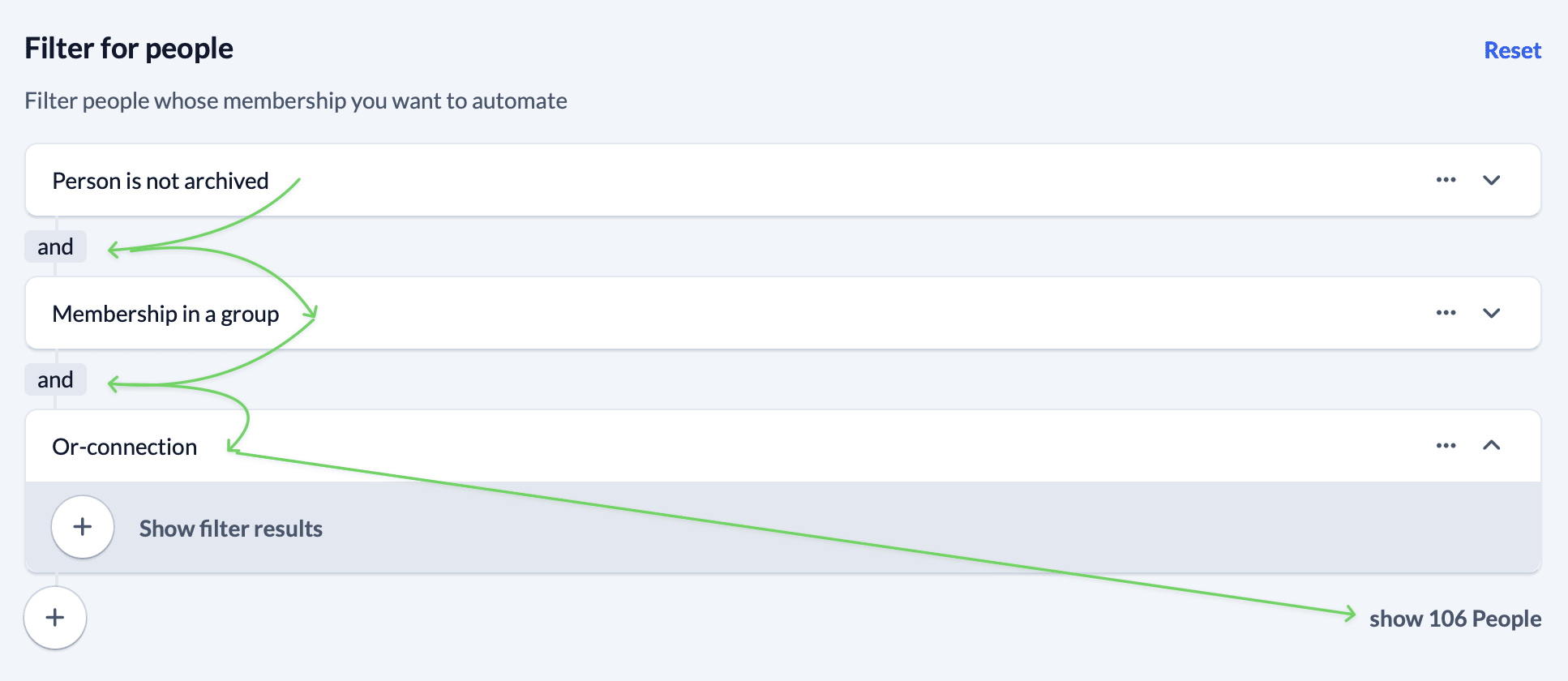
If you collapse all filter groups using the arrow at the end of the line and go through your filter from top to bottom, you will see an overview of the properties and group memberships you have set. Finally, check the result under … Show people and change your filter until you have found the group of people you would like to have.
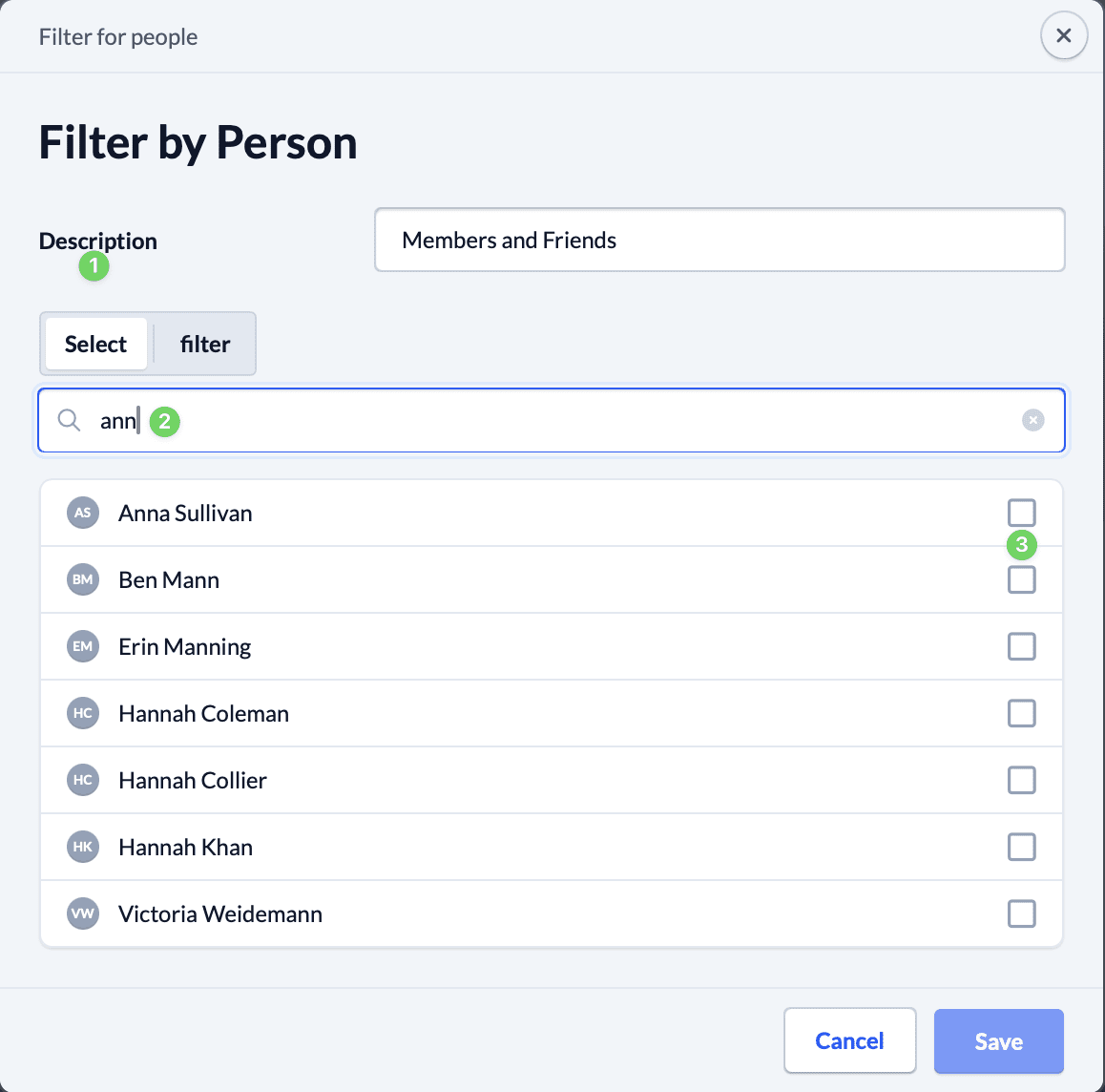
Option 1: Filter by person #
Under Select (1) you search directly for people (2) and mark them for selection (3).
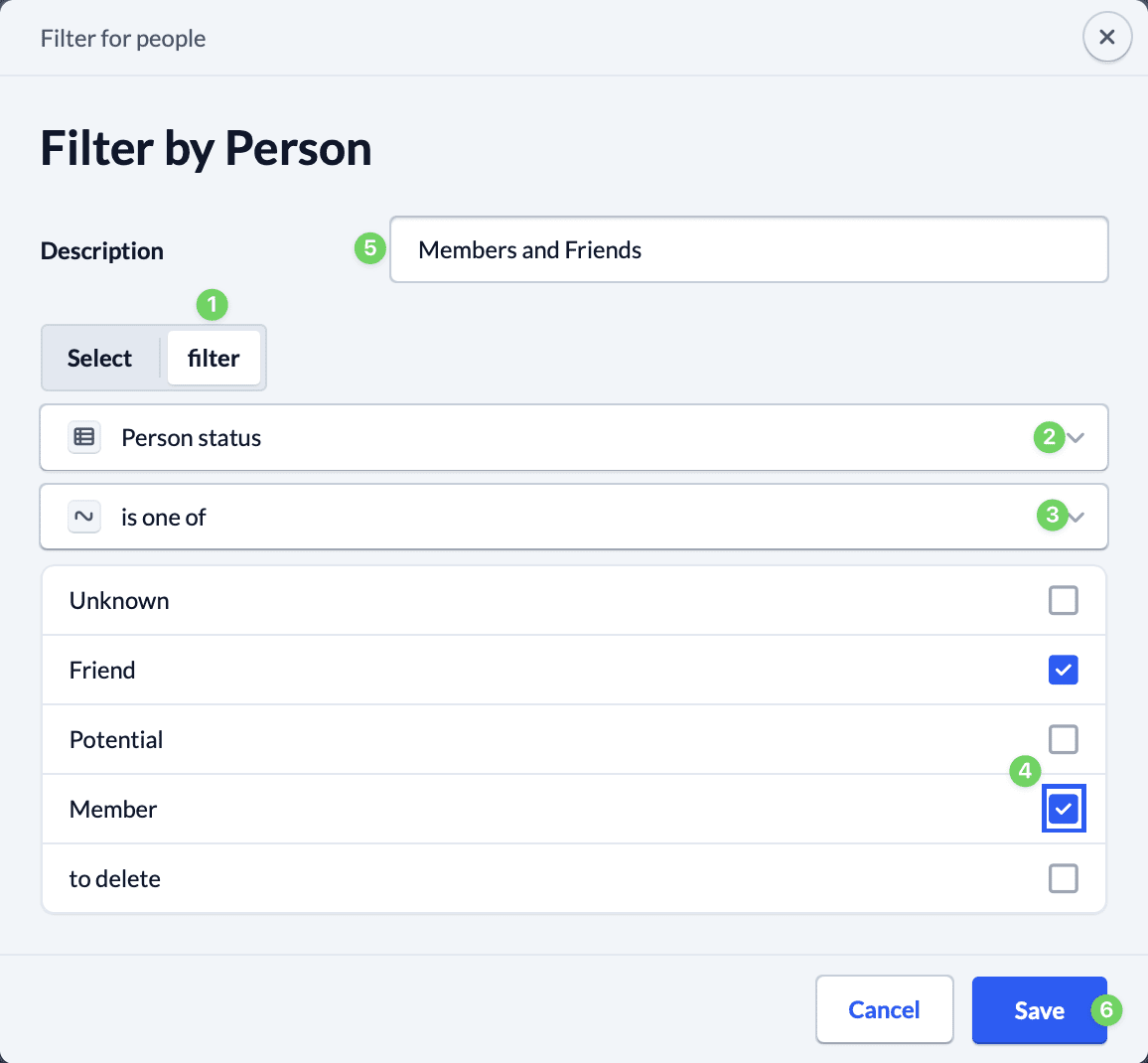
Under Filters (1), you filter the people according to certain properties (2), such as the person’s status. You decide whether only one of the selection options should be filtered or several at once (3). Select the properties you want by marking them (4).
Whether selecting or filtering: It makes sense to describe your filter (5) before you save it (6). This creates an overview and clarity.
Option 2: Filter by membership in a Group #
To filter people according to their membership of a group, first select Groups (1) from which you want to filter people and then the filters (2) that the group members of the previously selected Groups must fulfill.
Here, too, you can of course combine AND and OR connections to create filter groups. Under Show filter result (3), you can see all Groups or persons found with your filter at any time.
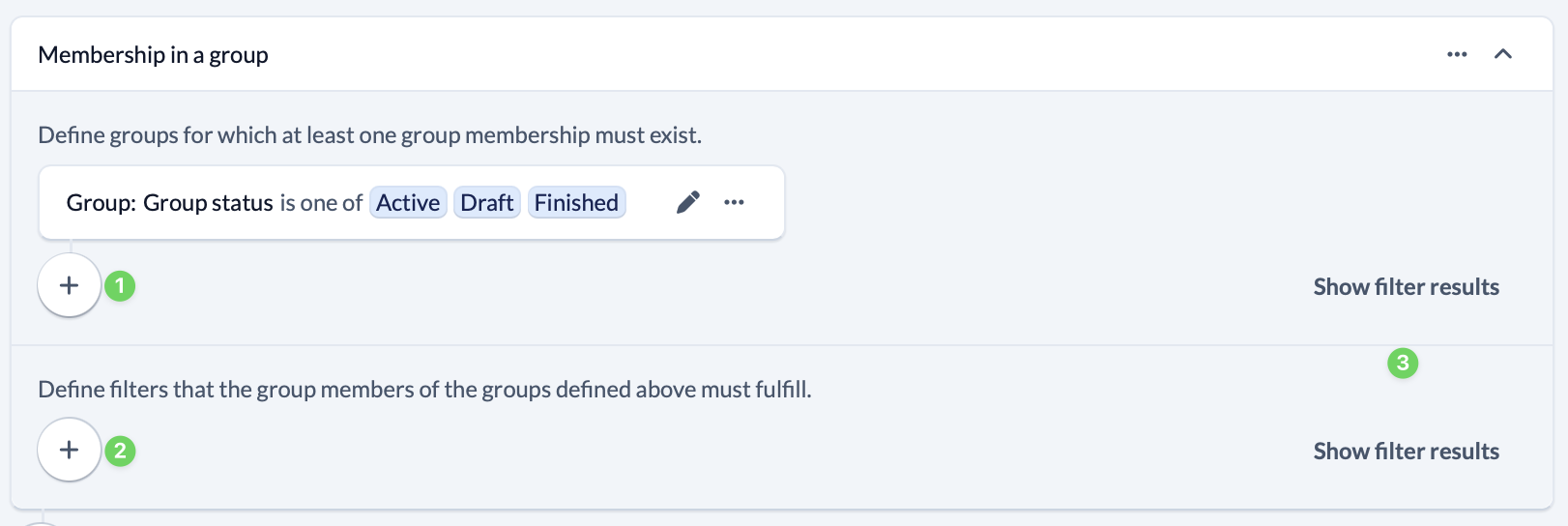
Step 1: Filter Groups #
Use the plus symbol under Define Groups, … to open the dialog box for filtering Groups.
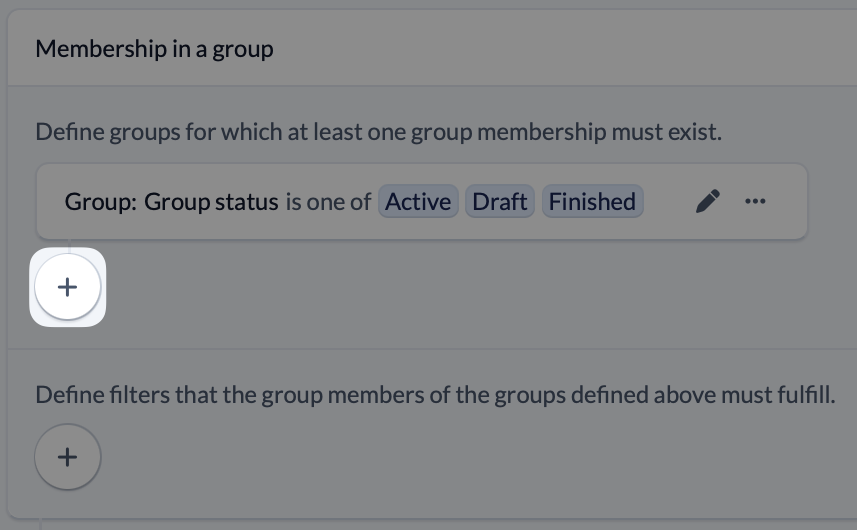
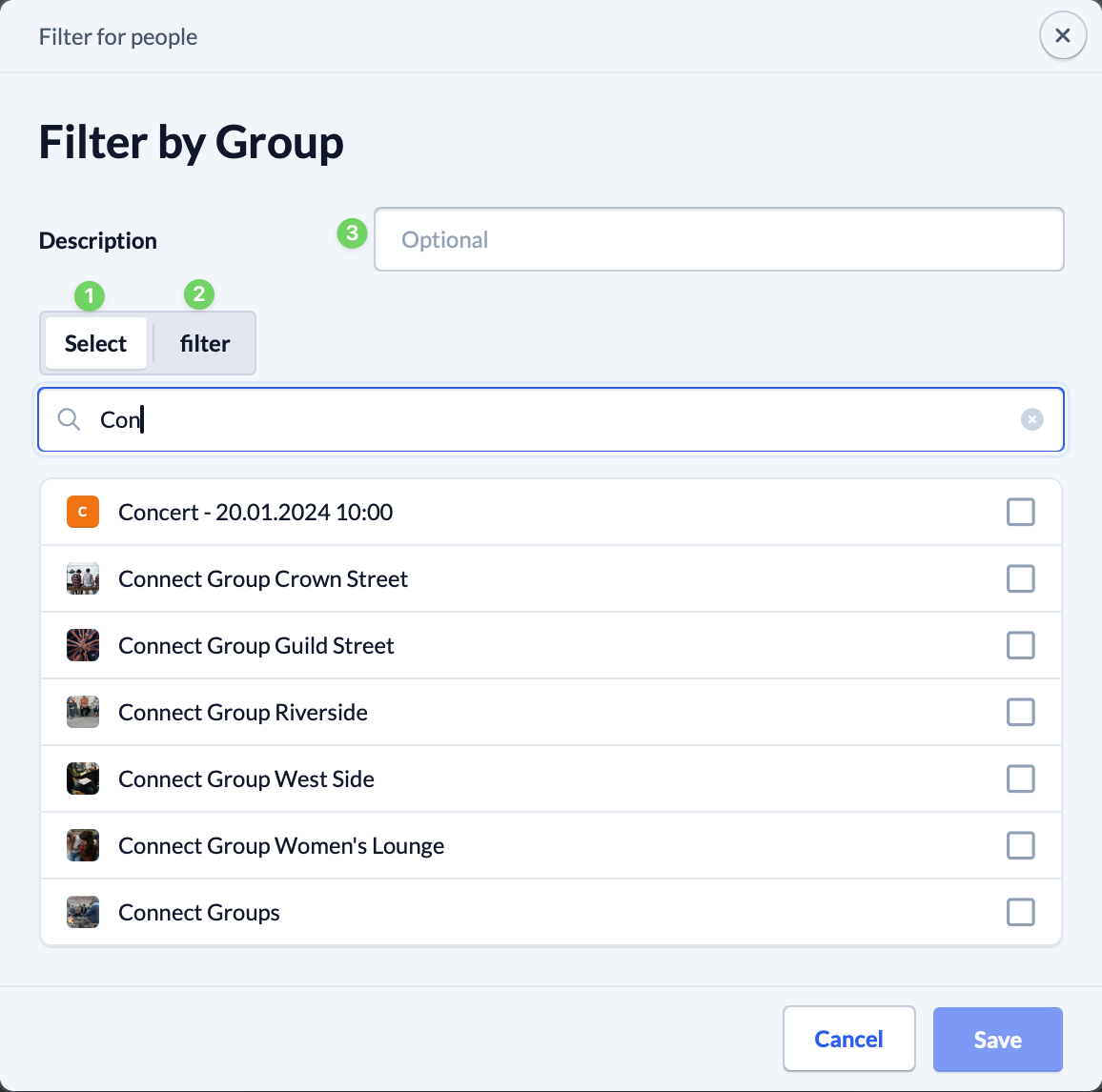
When filtering by group, search for the group directly under Select (1) and select it again by marking it.
Under Filter (2), you can filter Groups according to group information (such as graduation date or age group) and then select. Here too, you decide whether only one of the selection options should be filtered or several at once.
For more clarity, it makes sense to describe your filter in more detail (3).
Step 2: Filter group members #
Once you have filtered out Groups, use the plus symbol at the bottom to set the filters that the group members of the previously defined Groups must fulfill.
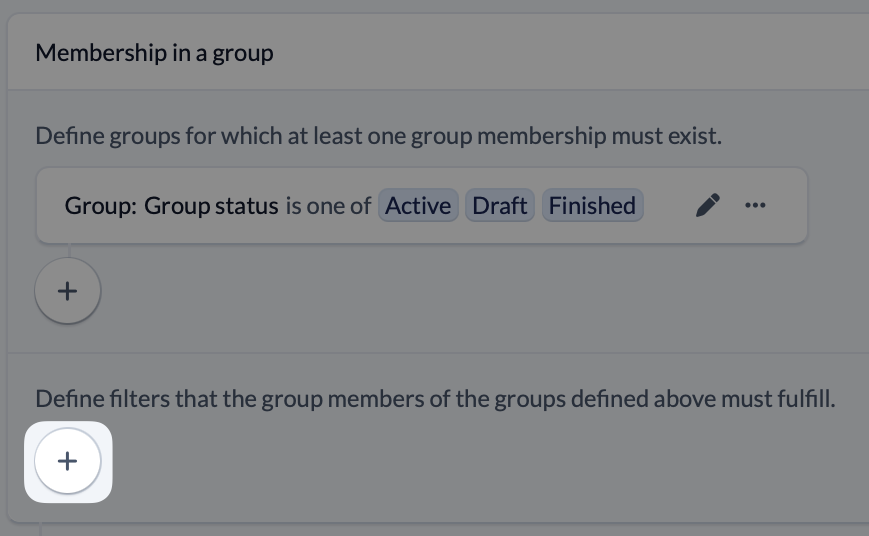
You can also filter people according to certain properties, such as person status, and according to their group memberships (see section “Setting people filters”).
Option 3: Add AND or OR connections #
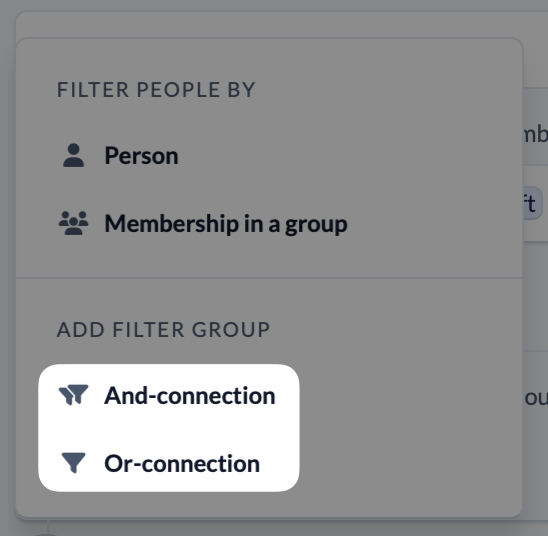
In addition to the filters that you have previously set for people or their group memberships, you have the option of adding AND or OR connections to refine your filter even further. This works the same for both operations.
Use the plus symbol to add a connection and, in the next step, select additional filters for people or their group memberships as shown in the “Setting people filters” section.
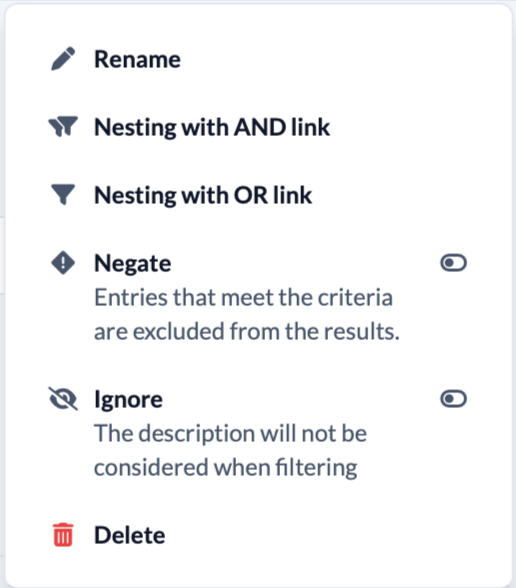
You can rename, further nest, convert, remove or delete a shortcut using the 3-dot menu. You can also negate or ignore shortcuts (as well as all filters).
Option 4: Nesting filters #
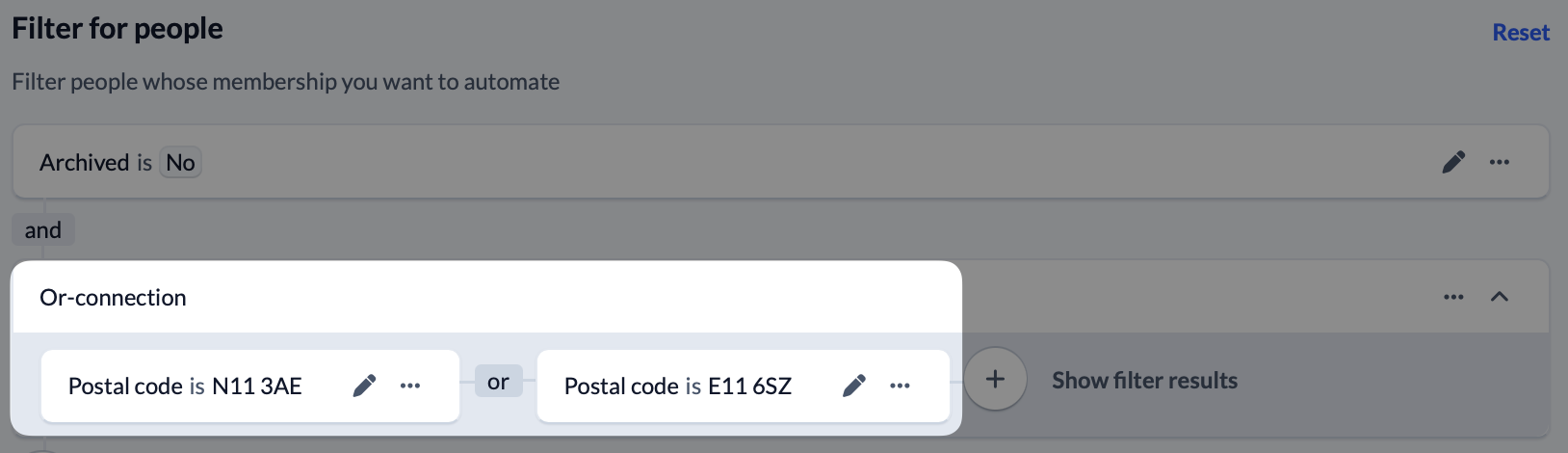
Whether just simple filters or And/Or connections: You can nest them to narrow down properties even further or add to them.
For example, if you want to filter people from a specific district that contains several zip codes, you can filter people by several zip codes using an OR nest.