


This tutorial explains how to configure your own Nextcloud so that you can log in to Nextcloud with your ChurchTools login as an OAuth server. Group and, if desired, group role information will be transferred. You can use the rights management feature in ChurchTools to define who is allowed to log in to Nextcloud.
You can find more details about the configuration of OAuth on our help page OAuth between two ChurchTools systems and the pages linked there.
1. Register Nextcloud as an OAuth client #
The first step is to add Nextcloud as an OAuth client in the System settings. To do this, open the System settings (2) via the administration menu (1). In the General section of the sidebar, you will find the Login entry (3). Here you can add a new OAuth client (4).

It is best to choose the name of the third-party system, in this case “Nextcloud”. This name will also be displayed to users later to make it clear which system they are trying to sign up to.

ChurchTools now creates the necessary connection data for connecting the NextCloud client. In our screenshot you can see the URL of our ChurchTools system https://testengland.church.tools. In your system, the URL of your ChurchTools is displayed accordingly.

You must add the redirect URI using the Redirect URI button. It looks like this: https://nextcloud.example.com/apps/sociallogin/custom_oauth2/ChurchTools
Exchange nextcloud.example.com with your own URL under which the Nextcloud runs.
The last part ChurchTools is the provider name, which we can choose ourselves directly in Nextcloud. If you follow these instructions, you only need to change the domain and can leave the name “ChurchTools”.
2. Activate the Social Login app #
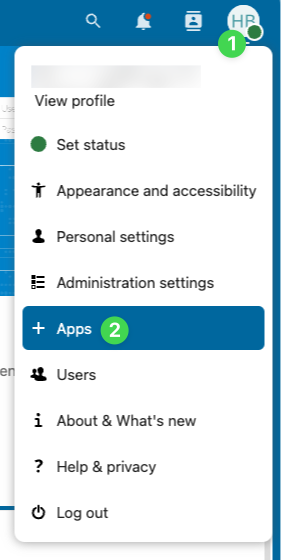
For the OAuth login we need the Nextcloud app “Social Login“. As an administrator, you can find and add new apps via the app menu.
3. Enter custom OAuth2 profile #
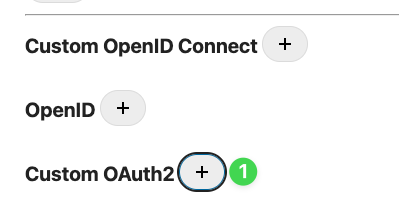
Now we can configure and set up the Social Login as an admin under “Administration”. To do this, we create a custom OAuth2 profile (1) and fill in the values with the links that ChurchTools provided in step 1.
Now fill in the fields:
- Internal name: Name that is also used in the redirect URI
- Title: Name of this profile. The text is also displayed during Nextcloud Login
- API Base URL, Authorization URL, Token URL, Profile URL, Client ID: These fields are created by ChurchTools and displayed in the OAuth client’s System settings (see screenshot above).
- Client Secret: Select a random character string here.

Now everything is set up and you can sign up for Nextcloud.
At the top of the page you will find some checkboxes. You are free to select what makes sense for you. However, we recommend that you check two boxes:
- Update the user profile with every registration
- Create groups automatically if they do not exist (see last point of these instructions)

4. Assign ChurchTools rights #
As a super admin, you will already be able to log in. However, it is not always intended that every ChurchTools user should also have a login to Nextcloud. Therefore, ChurchTools users need the global right to log in to the third-party system: Log in to third-party system via ChurchTools user account (login to external system).

5. Synchronize groups or group roles #
It is possible to transfer and save the group memberships to Nextcloud. There are two ways to do this. Whichever way you choose, the groups or group roles are transferred from ChurchTools to the third-party system. Nextcloud takes this data and assigns the profile to these groups.
If “Create groups automatically if they do not exist” is activated, a group will be created beforehand. If this option is not active, the groups can also be created manually in Nextcloud if not all ChurchTools groups are required. Only the name must be the same.
Transfer groups #
In order for groups to be transferred (regardless of Role), groups must be entered in the OAuth2 profile under “groups claim”.
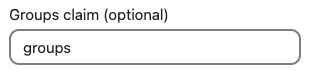
Groups in Nextcloud have the following scheme: <OAuth-internal-name>-<group name>. For example, “ChurchTools-church leadership”.
Transferring groups and roles #
In order for roles to be transferred, roles must be entered in the OAuth2 profile under “groups claim”.
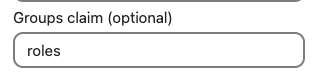
Group roles in Nextcloud have the following scheme:<OAuth-internal-name>-<group name>_<role>. For example, “ChurchTools-church leadership_leader”.